 Jetfold
Daily Notes, Templates and the Inbox
Daily notes
Daily notes give each day its own note, for a journal, a work log, or a scratchpad for the day.
| Command | Shortcut |
|---|---|
| Go → Today's Note | ⌘T |
| Go → Yesterday's Note | |
| Go → Tomorrow's Note |
Today's note is also in the Dock icon's right-click menu. The note is created the first time you open it (empty, or from your daily template), and opened with the cursor at the end, ready to type. An existing daily note is never overwritten.
The calendar
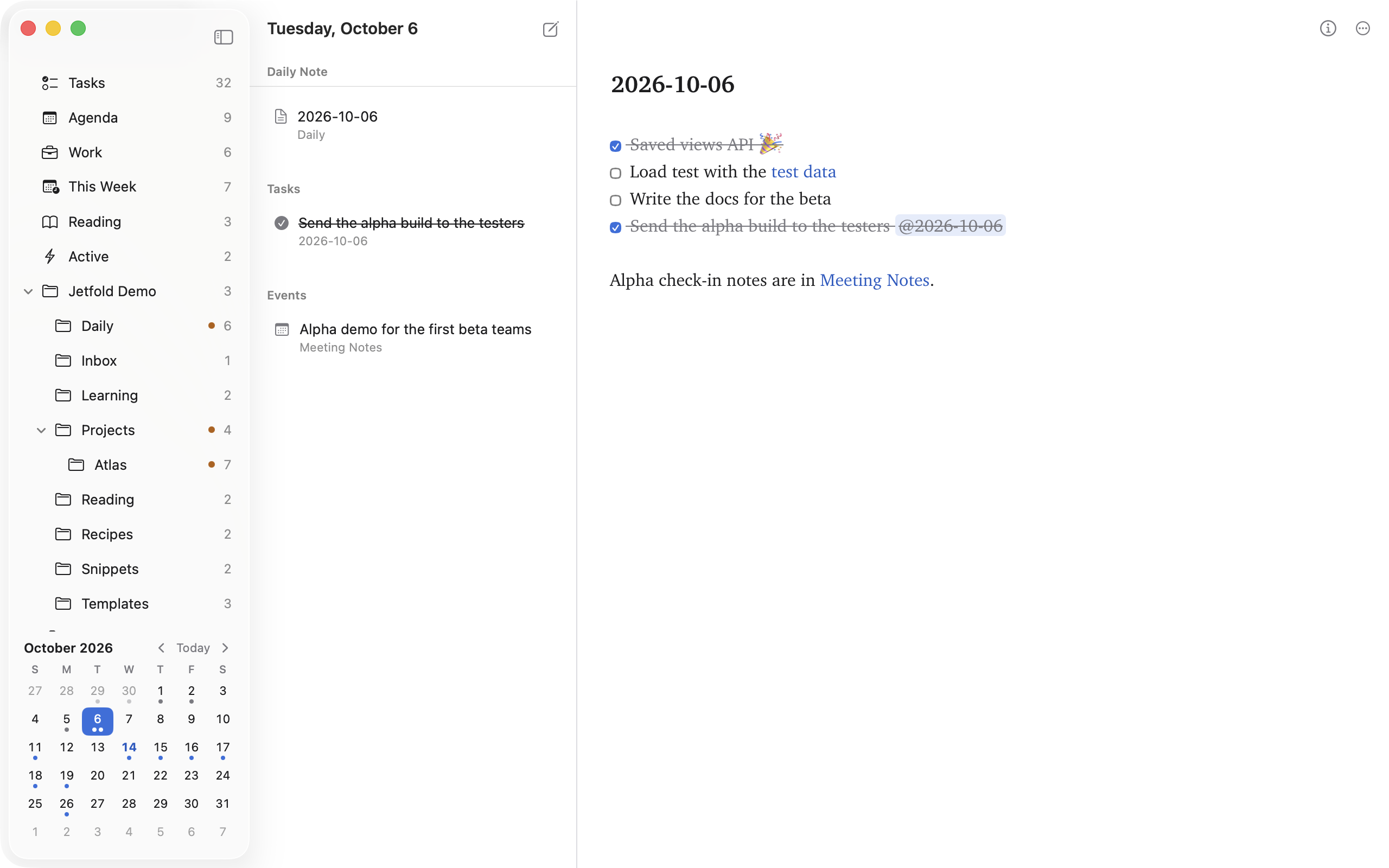
At the bottom of the sidebar, a small month calendar shows your daily notes at a glance:
- A dot under a day means it has a daily note; an accent-colored dot means it has open tasks or events with that @date.
- Today is in the accent color, and the day of the daily note you have open is highlighted.
- Click a day to see it: the middle column lists its daily note, its tasks (open ones first) and its events, and the daily note opens in the editor. Click a row to open it there, or a task's circle to tick it off. A day in another month takes the calendar there.
- Double-click a day to write in its daily note, starting it (from your daily template, if you have one) if there isn't one yet. A day with nothing on it also offers New Daily Note.
- ‹ › step through the months; Today comes back to this one.
Don't need it? Turn off View → Sidebar → Calendar.
Where daily notes go
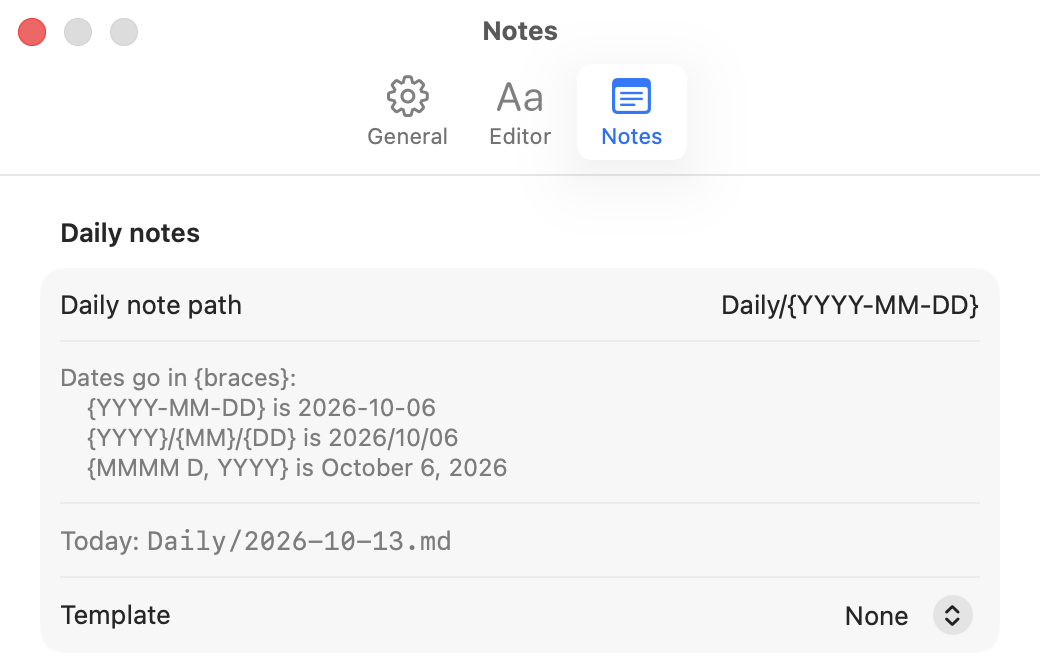
By default, daily notes are named after the date and kept in a Daily folder: Daily/2026-10-06.md. You can change this in Settings → Notes → Daily note path.
The path is a template. Text inside {curly braces} is a date format; everything else is used as written. For example:
| Template | Today's note |
|---|---|
Daily/{YYYY-MM-DD} |
Daily/2026-10-06.md |
Daily/{YYYY}/{YYYY-MM-DD} |
Daily/2026/2026-10-06.md |
Journal/{YYYY}/{MM} {MMMM}/{D} |
Journal/2026/10 October/6.md |
{dddd, MMMM D, YYYY} |
Tuesday, October 6, 2026.md |
Settings shows today's path as you type, so you can check the result; a template that wouldn't work is pointed out instead of saved.
Date format codes
| Code | Meaning | Example |
|---|---|---|
YYYY |
Four-digit year | 2026 |
YY |
Two-digit year | 26 |
MMMM |
Month name | October |
MMM |
Short month name | Oct |
MM |
Month, two digits | 10 |
M |
Month | 10 |
DD |
Day, two digits | 06 |
D |
Day | 6 |
dddd |
Weekday | Tuesday |
ddd |
Short weekday | Tue |
[text] |
Literal text inside a format | {YYYY [week]} → 2026 week |
Templates
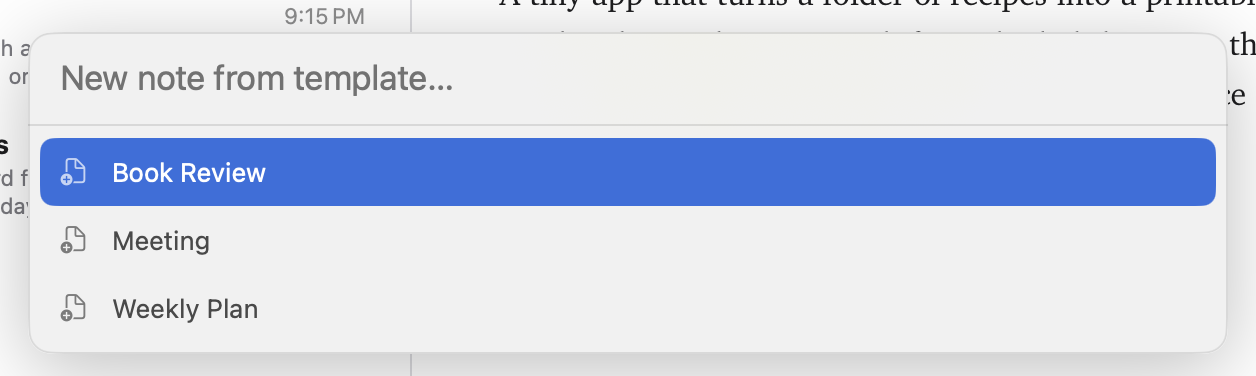
A template is an ordinary note that new notes start from: a meeting agenda, a book review, a weekly plan. Keep them in a Templates folder at the top of your notes folder (the name can be changed in Settings → Notes → Templates folder; subfolders are fine).
To use one, choose File → New Note from Template… (⌥⌘N) and pick it. A new note opens in the current folder holding the template's text, with its title ready to type. Press Return after the name to start writing.
To add a template to the note you're in, type / and its name: templates are listed last in the slash menu.
A template can hold placeholders that fill in when it's used:
| Placeholder | Becomes |
|---|---|
{{date}} |
Today's date: 2026-10-13 |
{{time}} |
The time: 14:05 |
{{date:dddd, MMMM D}} |
The date in any format: Tuesday, October 13 |
{{time:HH.mm}} |
The time in any format: 14.05 |
{{cursor}} |
Where the cursor goes after you name the note (it's removed) |
For example:
## {{date:dddd, MMMM D}}

**Attendees:** {{cursor}}

### Notes

### Action items
- [ ]
Templates are left out of the Tasks and Agenda views and the sidebar's tags, so their empty tasks and example dates don't show up as real ones. They're still found by search. Without a Templates folder, nothing changes: the menu item just explains where templates go.
A template for daily notes
Choose a template in Settings → Notes → Daily notes → Template, and each new daily note starts from it. Its placeholders fill in for that note's day, so tomorrow's note says tomorrow's date, and the cursor starts at {{cursor}} if there is one. Notes that already exist are never changed.
The Inbox: capturing text from any app
Jetfold adds a macOS Service called New Jetfold Note with Selection. Select text in any app (a web page, an email, a PDF), then choose Services → New Jetfold Note with Selection, from the app's own menu (App name → Services) or by right-clicking the selection. Jetfold opens a new note containing that text in its own window.
These notes go into your inbox folder, Inbox by default. Change it in Settings → Notes → Inbox folder. The folder is created the first time it's needed, and it can be a subfolder such as Notes/Inbox.
Giving it a keyboard shortcut
- Open System Settings → Keyboard → Keyboard Shortcuts…
- Choose Services, then open the Text section.
- Make sure New Jetfold Note with Selection is ticked.
- Double-click to the right of it and press the shortcut you want.
If the service doesn't show up, make sure Jetfold is in your Applications folder and has been opened at least once. Logging out and back in also refreshes the Services list.
For capturing from scripts and Shortcuts, see the new link in Opening Jetfold from Other Apps.