 Jetfold
Getting Started
Choosing your notes folder
The first time you open Jetfold, it asks for a folder. Choose any folder: an existing collection of Markdown files, a folder synced with iCloud Drive, a git repository, or a brand-new empty folder.
Tip: click the jet.
- If the folder is empty, Jetfold creates a short
Welcome.mdnote to get you started. You can delete it whenever you like; it won't come back. - If the folder already has notes, Jetfold shows them straight away. Nothing is changed or imported.
- Hidden files and folders (names starting with
., such as.git) are ignored.
Each notes folder is a workspace with its own settings, kept inside it in .jetfold/settings.json, so they travel with the folder (and get committed if it's a git repository). Open another folder with File → Open Folder…, and switch between the ones you've opened with File → Open Workspace or the command palette. File → Open Workspace → Forget Workspace removes one from the list; its notes and settings are left untouched.
Tip: Jetfold reads
.mdand.txtfiles. Other files in the folder (PDFs, images and so on) are left alone and don't appear in the note list.
The free trial
Everything in Jetfold works for 14 days, free. The first time you open it, Jetfold offers the trial; start it from Start Free Trial. After 14 days, unlock Jetfold with a single purchase to keep writing. There's no subscription.
If you haven't started the trial, or it has ended, nothing is taken away: you can still open, read, search and export every note. Editing, creating, moving and deleting notes wait until you unlock. Your notes are ordinary files, so they're always yours either way.
Jetfold → Unlock Jetfold… and Settings → General show how many trial days are left and have the unlock. Restore Purchases there brings back an unlock bought on another Mac with the same Apple Account.
The main window
The main window has three columns:
| Column | What it shows |
|---|---|
| Sidebar | Your notes folder and every folder inside it, as a tree, and your tags underneath |
| Notes | The notes in the selected folder or tag, with titles, dates and a short preview |
| Editor | The selected note (or notes), ready to edit |
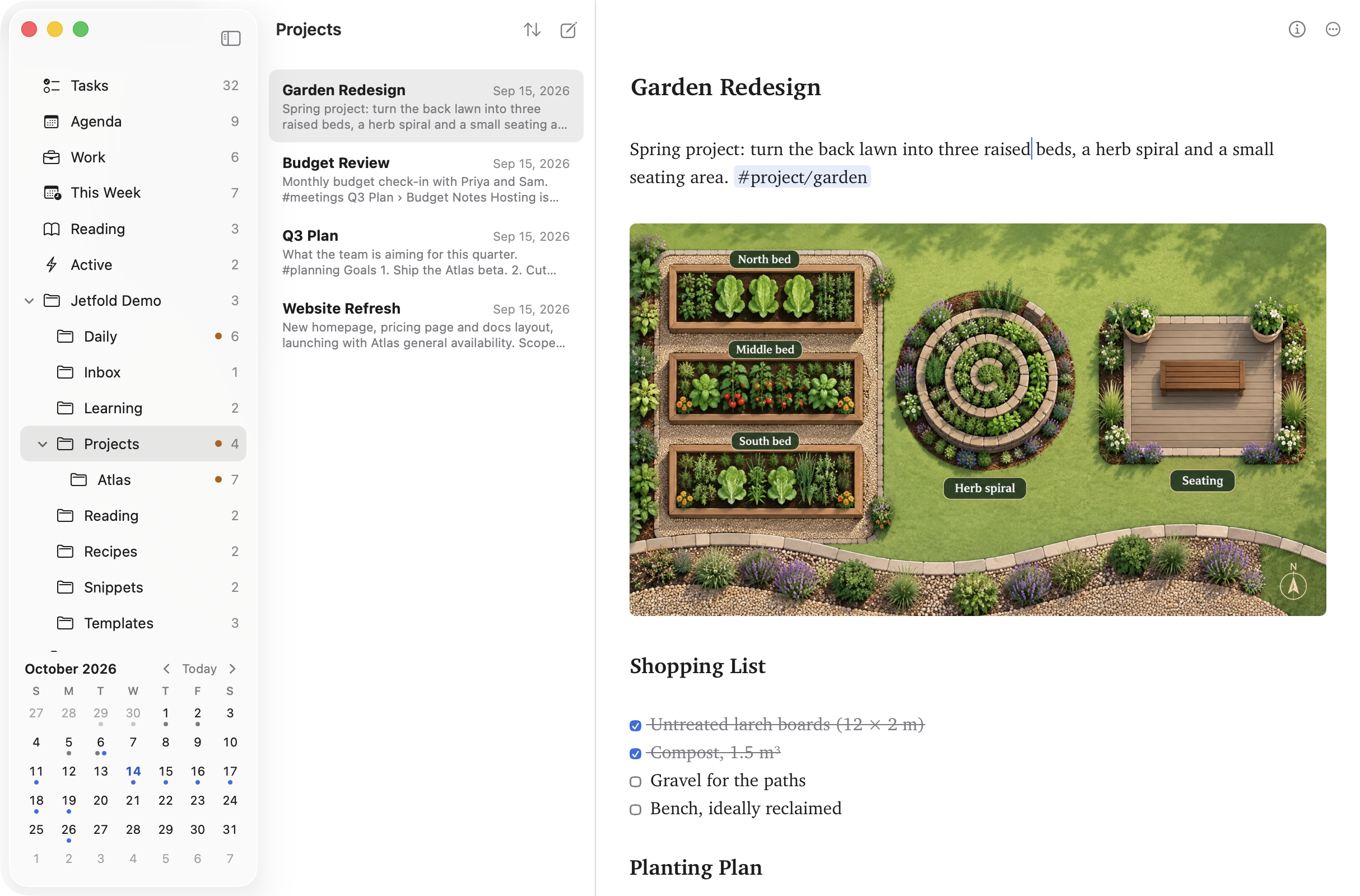
Each column has its own header:
- Sidebar: the ◧ button hides the folders.
- Note list: the name of the folder or tag you're looking at, a Sort menu, and a New Note button.
- Editor: ⓘ opens Note Info and ⋯ has everything you can do with the note. A small status icon also appears there if a save is taking a while.
You can hide columns when you want to focus:
- View → Editor (⌘1) shows only the editor.
- View → Editor, Files (⌘2) shows the note list and the editor.
- View → Editor, Files, Folders (⌘3) shows all three.
The number is how many columns you'll see. Drag the borders between columns to resize them; Jetfold remembers the widths for each workspace. Jetfold never resizes your window: when the window is too narrow for all three columns, the folders step aside, and come back when there's room again.
As simple as you like
Everything beyond your folders and notes is a switch. Turn off Tasks, Agenda, Tags, the calendar and your own views under View → Sidebar, and the sidebar is just your folders. Note Counts is there too, and turning off Previews and Dates under View → Note List leaves just the titles. Jetfold is then a folder of notes and an editor. It's all configurable: every switch turns its part back on, right where it was.
Creating your first note
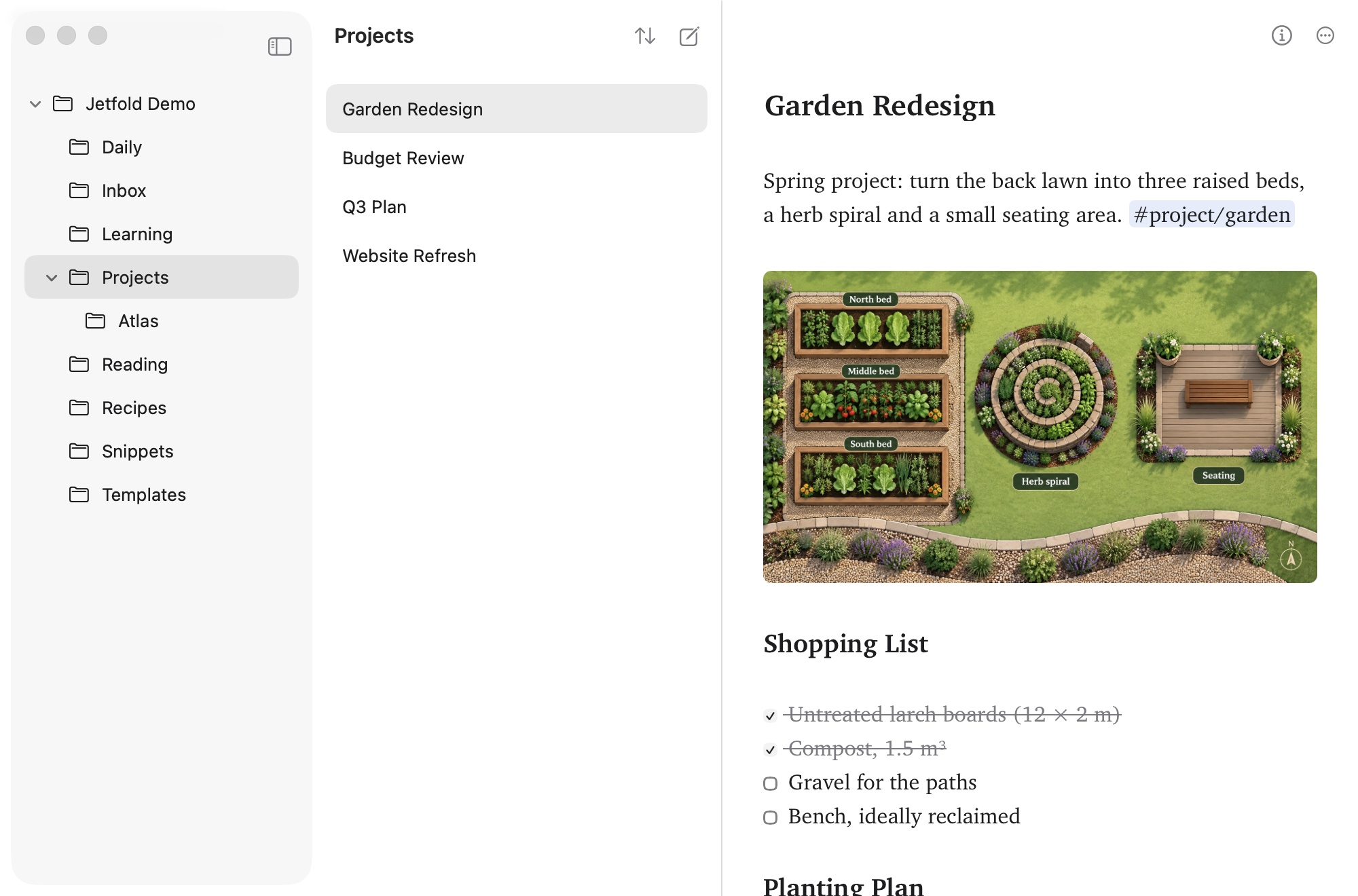
Press ⌘N (File → New Note) or click the New Note button above the note list. Jetfold creates Untitled.md in the current folder and puts your cursor in its title so you can name it straight away. Type a title, press Return, and the cursor moves into the note so you can start writing.
There's no Save button to remember. Jetfold saves automatically a moment after you stop typing, and again whenever you switch notes, switch apps, or quit. ⌘S saves right away if you like. If a save is ever slow or fails, an icon appears in the editor's header; hover over it for details.
Saving and outside changes
Jetfold watches your notes folder. If a note changes on disk (because you edited it in another app, or a sync service brought in a new version), the open note updates by itself.
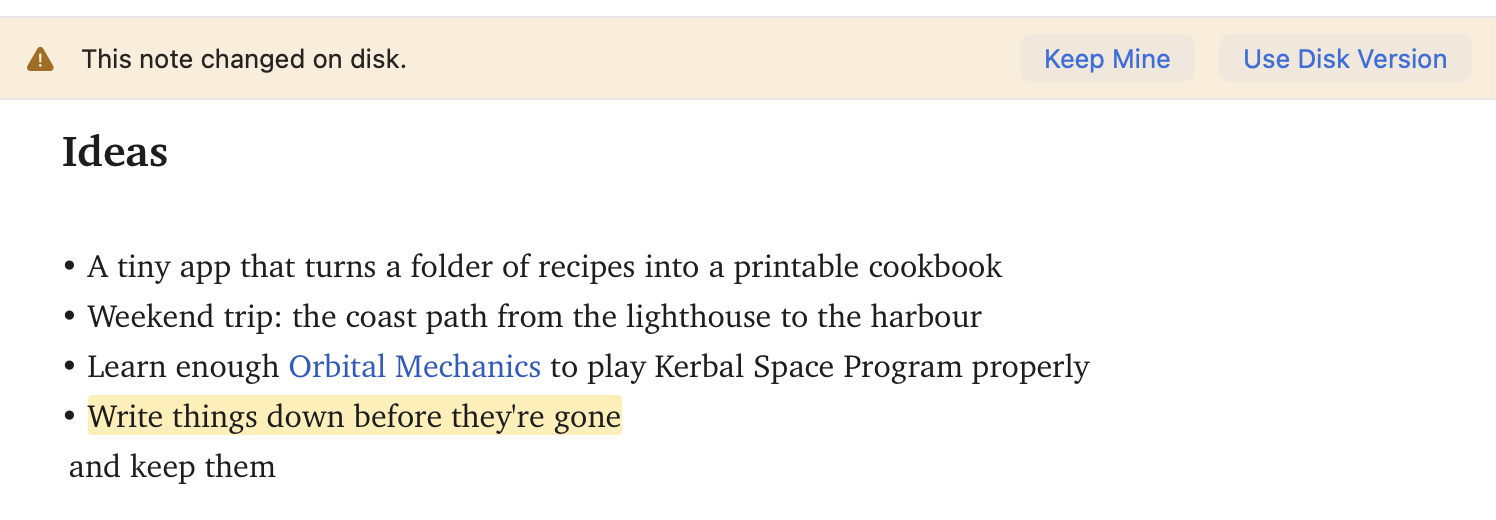
If a note changes on disk while you have unsaved edits in Jetfold, it won't silently overwrite either version. A bar appears above the note asking which version to keep:
- Keep Mine saves your version over the one on disk.
- Use Disk Version throws away your unsaved edits and loads the file.
Quitting and closing
- ⌘W closes the current window. Closing the main window just hides it; Jetfold keeps running. Click the Dock icon or press ⌘0 (Window → Notes) to bring it back.
- Right-click the Dock icon for New Note and Open Today's Note.
- ⌘Q quits. Any unsaved edits in every window are saved first.
Appearance
Jetfold follows your Mac's Light or Dark mode by default, in its own color theme. To pick a mode or another theme, go to Settings → General. See Settings and Themes.