 Jetfold
Git Integration
If your notes folder is a git repository (or inside one), Jetfold shows what has changed since your last commit, lets you browse and restore older versions of any note, and can commit for you.
None of this is required. If your folder isn't a git repository, the git features stay switched off and out of the way.
Git is built into Jetfold, so you don't need git installed. To share your notes with another Mac, push and pull them with git in Terminal or a git app; Jetfold picks up whatever arrives.
Status badges
Notes that have changed since the last commit get a letter beside their date in the note list:
| Badge | Meaning |
|---|---|
| M | Modified |
| A | New, and added to git (staged) |
| R | Renamed (staged) |
| U | New and not yet tracked by git |
Folders that contain any changed notes get a small dot, so you can find changes without opening every folder. The colors come from your theme.

The badges update as you edit, when files change on disk, and whenever you switch back to Jetfold, so they pick up commits you make in Terminal or another git app.
Turn them off with View → Git Status.
Changed lines in the editor
While you edit, colored marks in the left margin show how the note differs from its last committed version:
- Green bar: added lines
- Orange bar: changed lines
- Red triangle: lines were deleted here
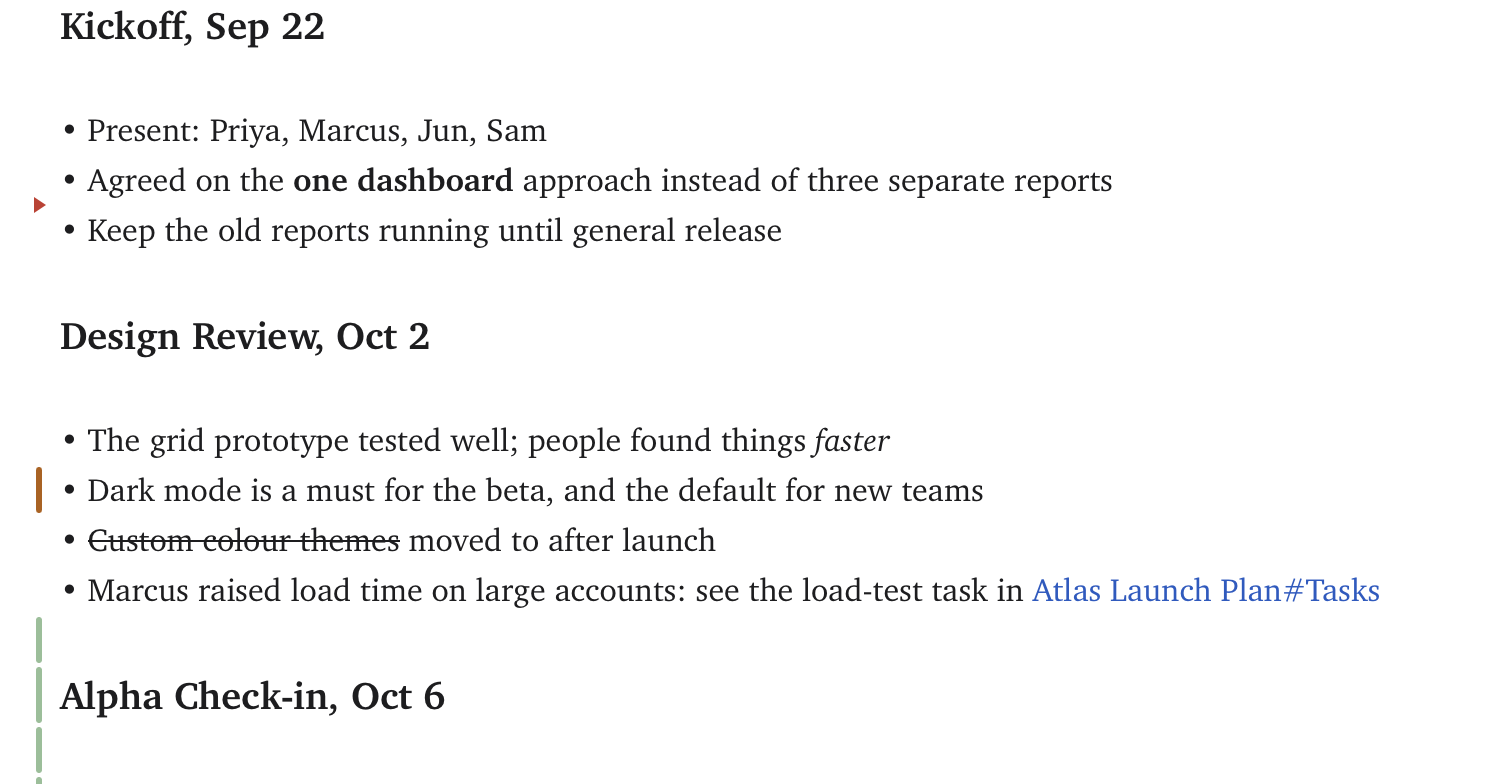
The marks update with every keystroke and disappear once you commit. Turn them off with View → Git Changes.
Note history
Note → Show History… (⇧⌘H) opens the full history of the current note.
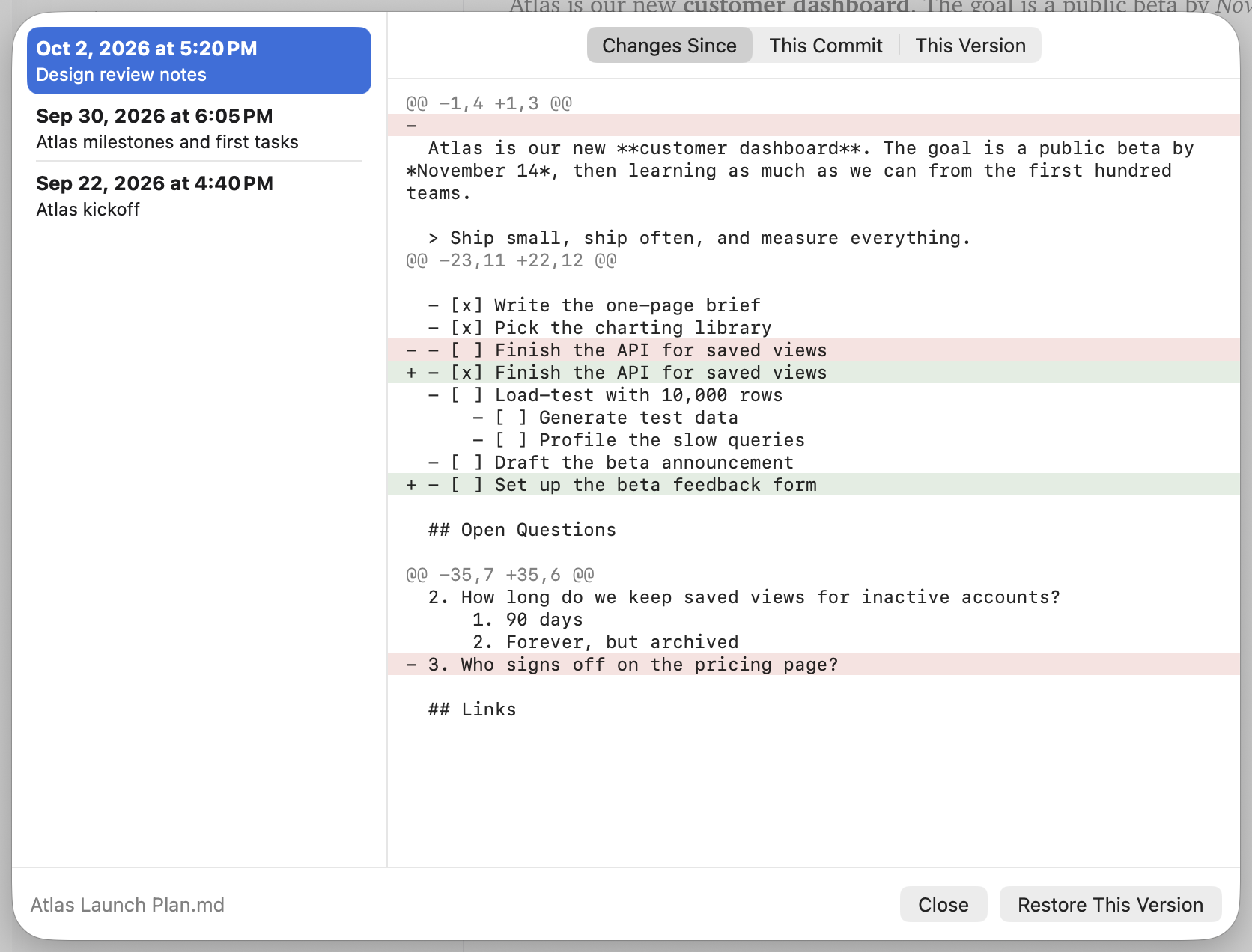
The list on the left shows every commit that changed this note, newest first, with its date and commit message. Automatic messages that only repeat the date (such as "Update 2026-08-27 12:52:03") aren't shown, to keep the list tidy. If the note was renamed or moved since, the version says which name it had then.
History follows the note through renames and moves, so you see its whole life, not just since it got its current name.
Choose a version with the mouse or ↑ / ↓, then pick a tab:
| Tab | Shows |
|---|---|
| Changes Since | Everything that has changed between that version and the note as it is now |
| This Commit | Just what that commit changed |
| This Version | The complete note as it was at that time. You can select and copy from it |
Restoring a version
Click Restore This Version to replace the note's text with the selected version. This is an ordinary edit: it's saved like any other change, and ⌘Z undoes it. Nothing in git is changed or rewritten.
Click Close or press Escape to close the history.
Committing
File → Commit Changes… (⇧⌘K, or Git: Commit… in the command palette) opens a palette listing every changed note with its status.
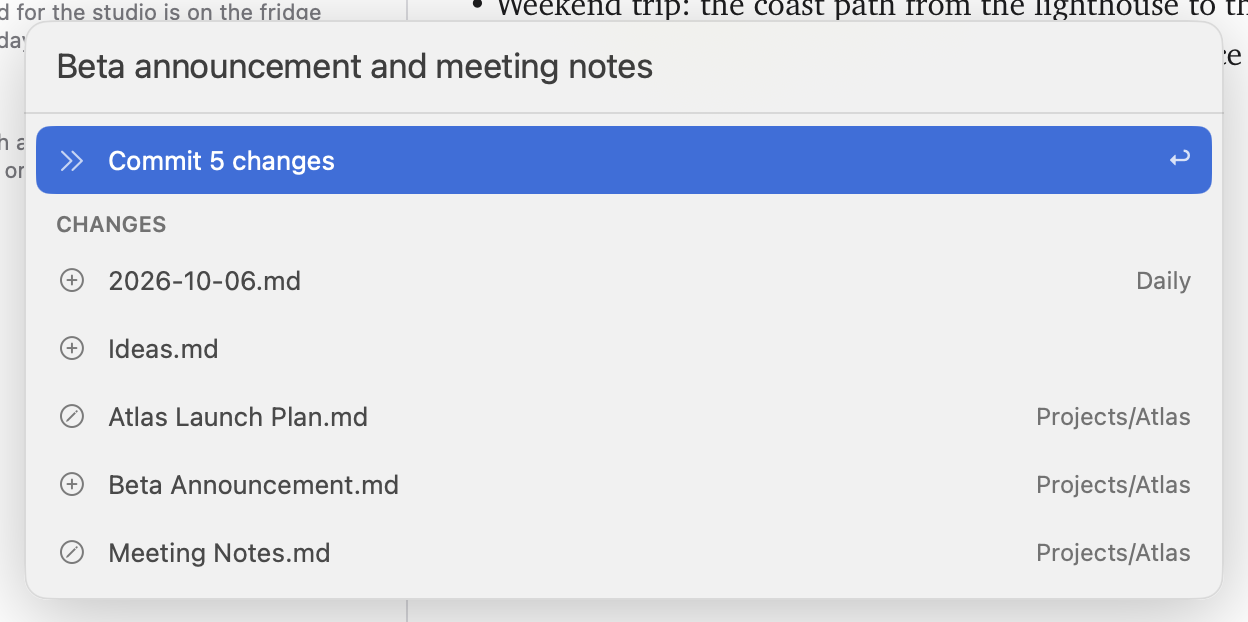
Type a message and press Return to commit. If you leave the message empty, Jetfold uses the date and time, for example "Update 2026-10-06 14:32:05".
- All changes in your notes folder are committed: edits, new notes, renames and deletions. Your
.gitignoreis respected. - Only the notes folder is committed. If it's part of a bigger repository and something outside it is staged, Jetfold won't commit, rather than sweep it in.
- Pending edits are saved first, so the commit always includes what you see.
- The commit's author is the repository's own git user (
git config user.nameanduser.emailin the repository); without one, it's the author of the latest commit. - Git hooks don't run, and commits aren't signed.
A short notice confirms the commit, or says Nothing to commit.