 Jetfold
Finding Things
The palettes
Jetfold's palettes are one search box with four modes, all in the Go menu. Each has its own shortcut, and pressing the same shortcut again closes it.
| Palette | Shortcut | What you search |
|---|---|---|
| Command Palette | ⌘P | Every command in the app |
| Go to Note | ⌘O | Note and folder names (and, below them, note text) |
| Search in Notes | ⇧⌘F | The text inside every note |
| Go to Heading | ⇧⌘O | The headings in the current note |
In every palette, type to filter, use ↑ / ↓ (or ⌃P / ⌃N) to choose, Return to run or open, and Escape to close. Matching is fuzzy: letters only need to appear in order, so dn finds "Daily Notes". Separate words can come in any order, so review 2025 finds "2025 Annual Review"; every word has to match, and names with the words in the order you typed them rank higher. Numbers have to appear whole: 2025 matches "2025-03-21" but not "2024-03-25". Exact substrings and matches at the start of words rank highest, and the matched letters are highlighted.
The palettes work in note windows too.
Commands (⌘P)
Every command in the app, including ones that aren't in any menu. With nothing typed, the full list is shown, each with its shortcut.
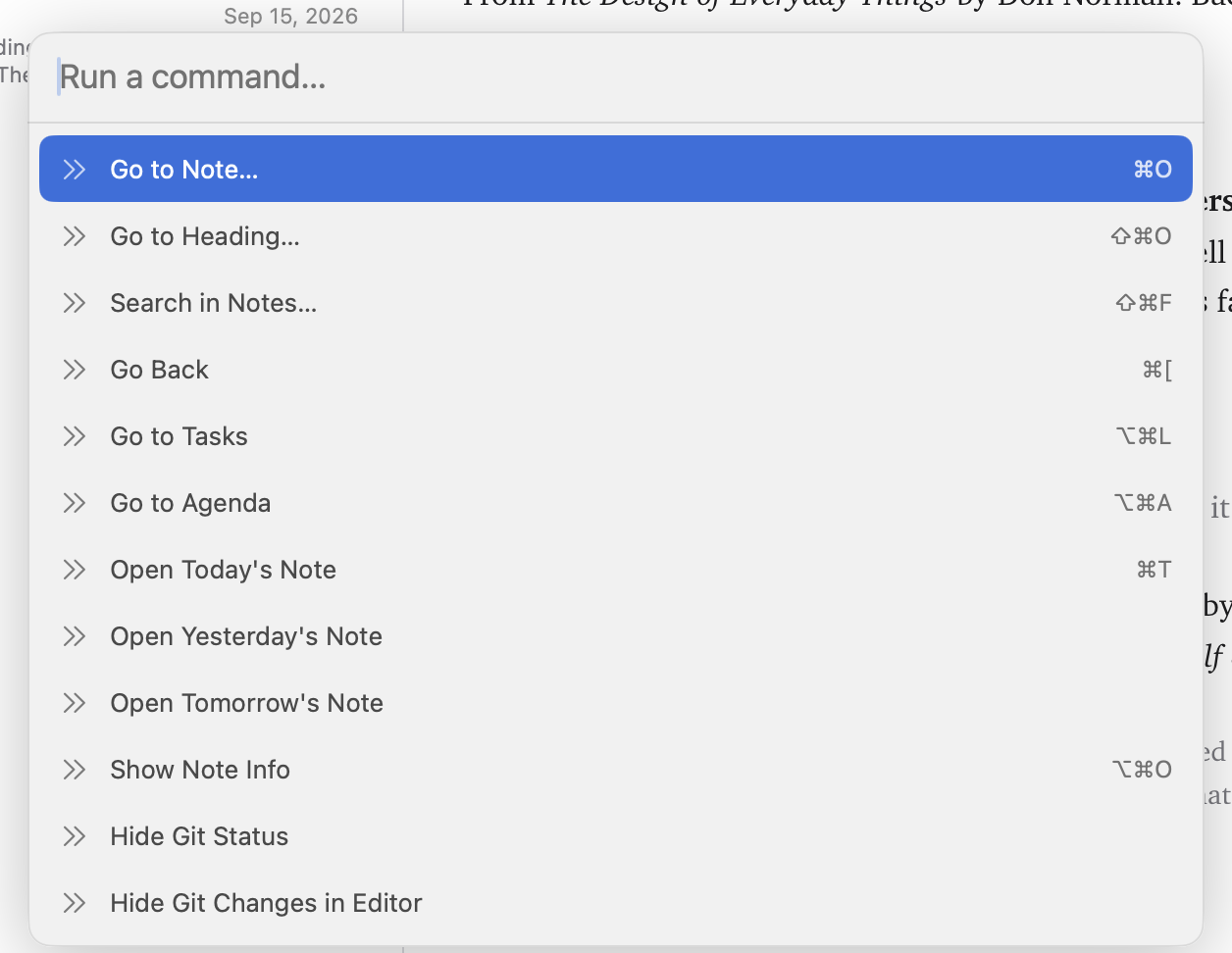
The list depends on what you're doing:
- With a note selected: Rename Note…, Pin/Unpin Note, Make Note Read-Only/Editable, Duplicate Note, Move Note to Trash, Reveal Note in Finder, Export Note as HTML…/PDF…/EPUB…/TextBundle…/Plain Text…, Show Note History….
- With several notes selected: Pin, Duplicate and Move to Trash for all of them ("Duplicate 3 Notes").
- With a folder selected: New Note, New Folder, Rename Folder…, Move Folder to Trash, Reveal Folder in Finder.
- When opened from inside a note: every Format command ("Format: Bold", "Format: Heading 2" and so on) and the folding commands ("View: Fold All"). When the cursor is on a task, Complete Task or Uncomplete Task is listed first.
- In a git repository: Git: Commit…, and showing or hiding the git status and changed lines.
- Always: Go to Note, Search in Notes, Go to Tasks, Go to Agenda, Open Today's / Yesterday's / Tomorrow's Note, Open Random Note, Show/Hide Note Info, the layouts, sorting and View options, and opening or forgetting your other workspaces.
Go to Note (⌘O)
Jump to any note or folder by name. With nothing typed, it lists your most recently edited notes, so ⌘O then Return reopens whatever you were just working on.
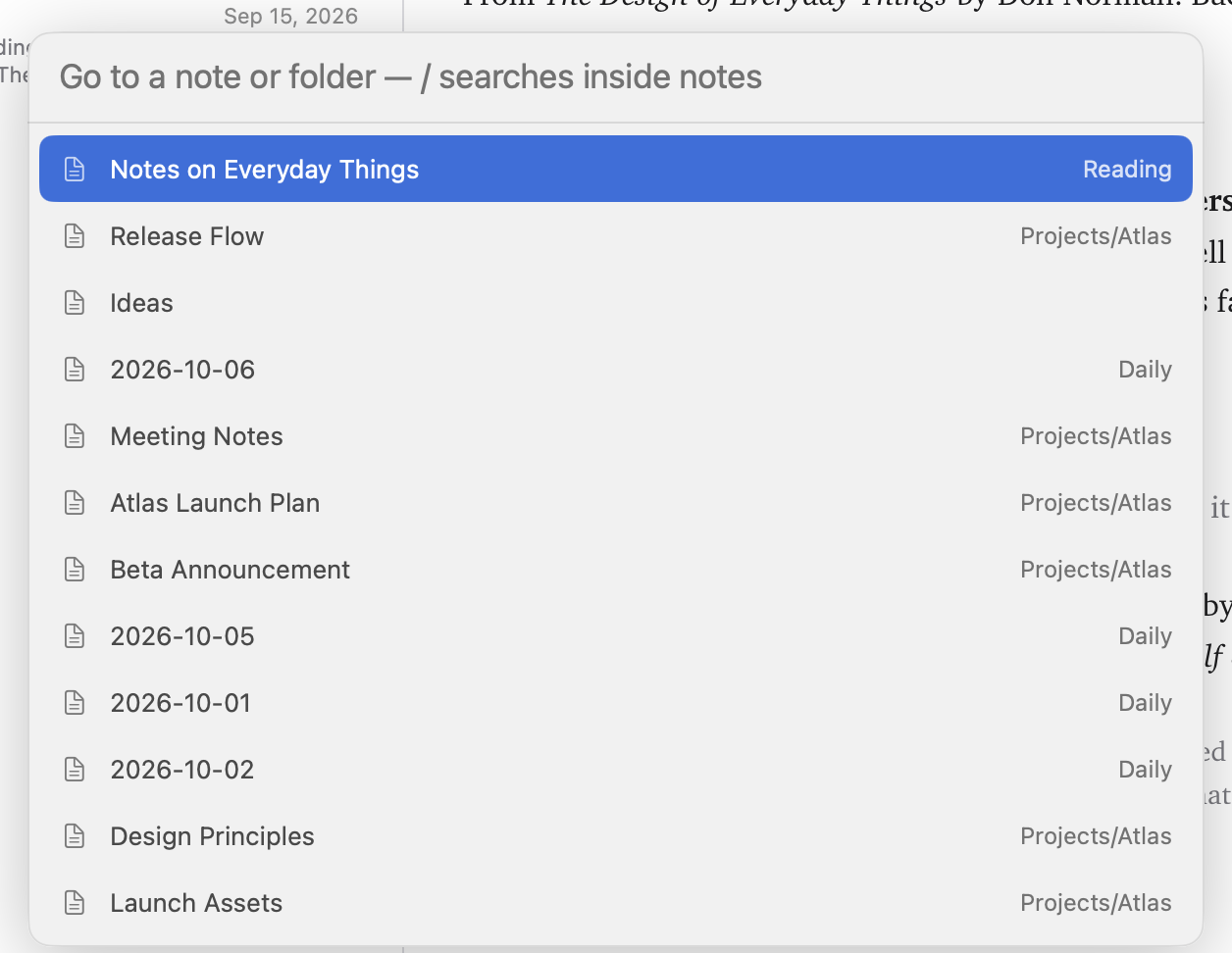
Picking a note opens it (expanding its folder in the sidebar and selecting it in the list). Picking a folder opens that folder.
Search in Notes (⇧⌘F)
Searches the full text of every note. This is Go to Note with a / typed at the start, and you can type / in Go to Note yourself to get the same thing.
- A note matches when it contains every word you typed, in any order and any case.
- Notes with the words in their title rank first, then by how often the words appear, then by how recently the note was edited.
- Each result shows a snippet with the match highlighted.
- Opening a result opens the note with the match selected and scrolled into view.
Without the /, Go to Note shows name matches first, then an In notes section with text matches.
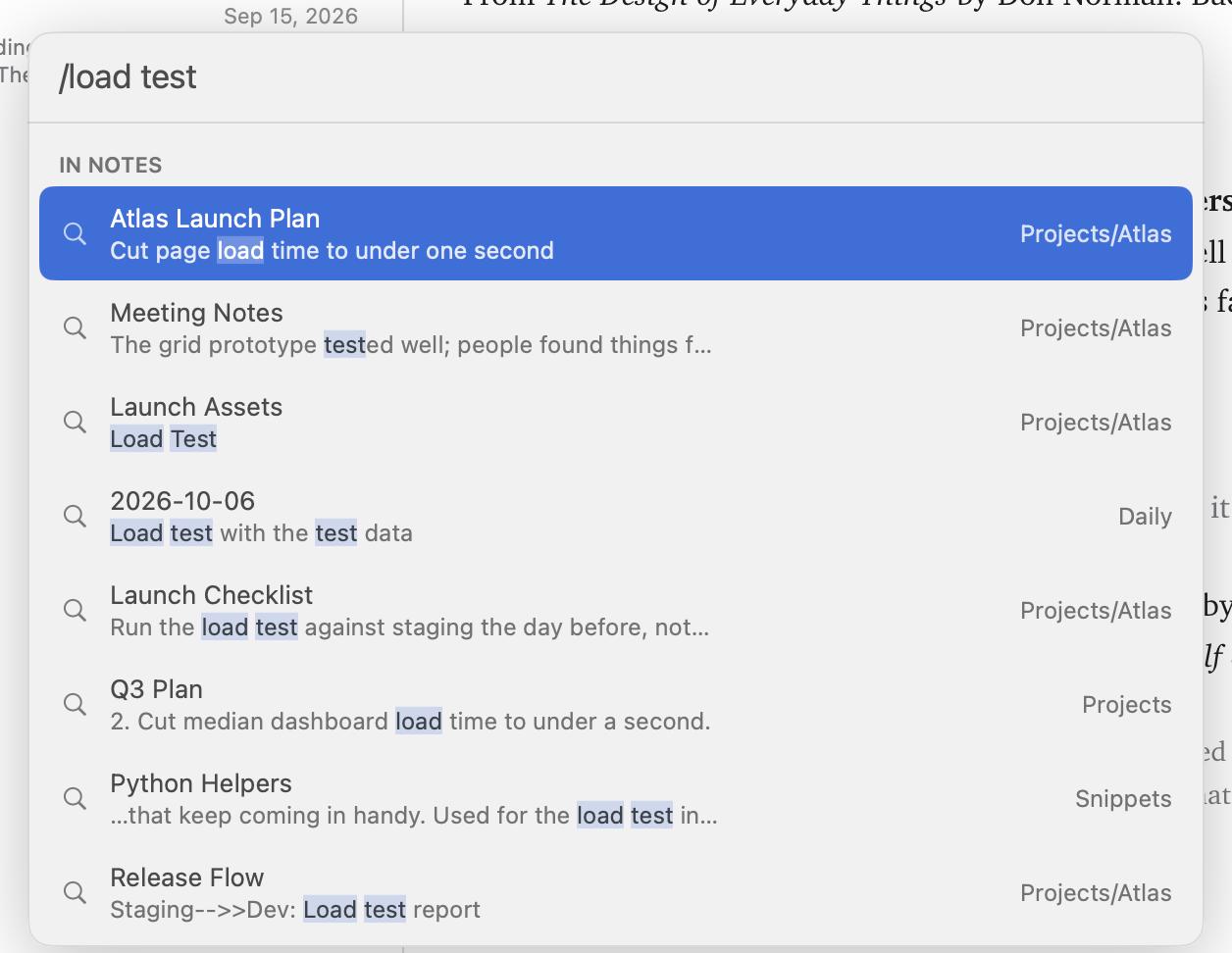
Search is fast, even across thousands of notes, and picks up changes made outside the app.
Go to Heading (⇧⌘O)
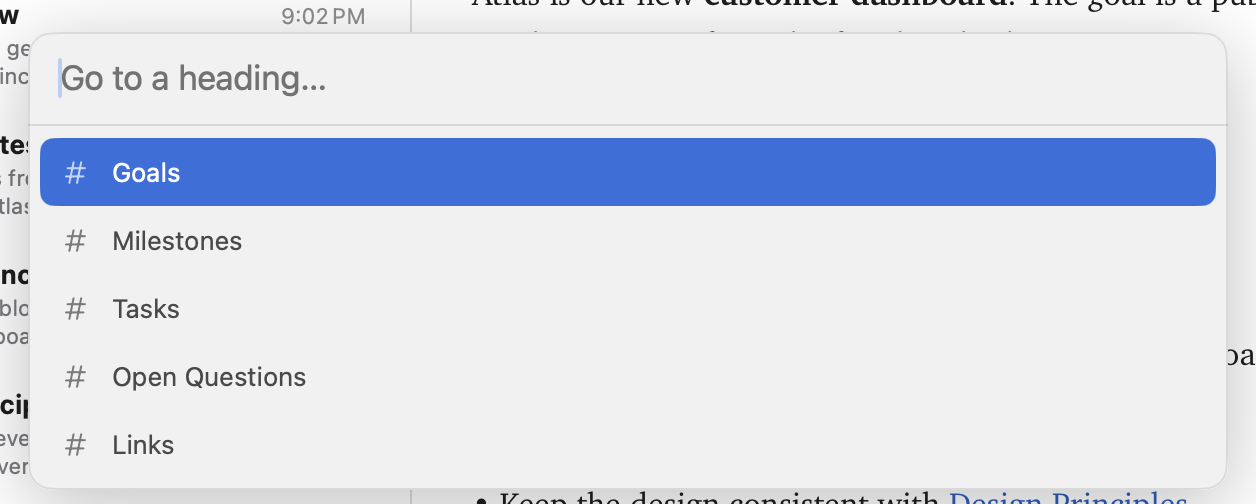
Lists the current note's headings in order, indented by level. As you move through the list, the note scrolls to show each heading. Return puts the cursor on it; Escape puts the note back where it was.
Tags
Type # followed by a word anywhere in a note to tag it: #dinner, #Mike-Flynn, #project/atlas. Tags show as small chips, and they're plain text in your notes, nothing hidden.
Your tags are listed in the sidebar, where you can browse them like folders, drag notes onto them, and rename them; see Tags in the sidebar.
- Click a tag in a note to list every note that uses it.
- Nested tags (
#project/atlas) sit under their parent, and picking#projectincludes them. - Tags are the same whatever their capitals:
#Workand#workare one tag. - A tag starts with a letter and can contain letters, numbers,
_,-and/. Headings (# Heading, with a space), numbers like#1, and#inside code or web addresses aren't tags.
Dates and the agenda
Type @ and a date, @2026-10-10, anywhere in a note to put a date on it: Standup with Sam @2026-10-10. Dates show as a small chip, and they're plain text in your notes, nothing hidden. Only real dates count (@2026-02-30 doesn't), and not inside code or in an email address.
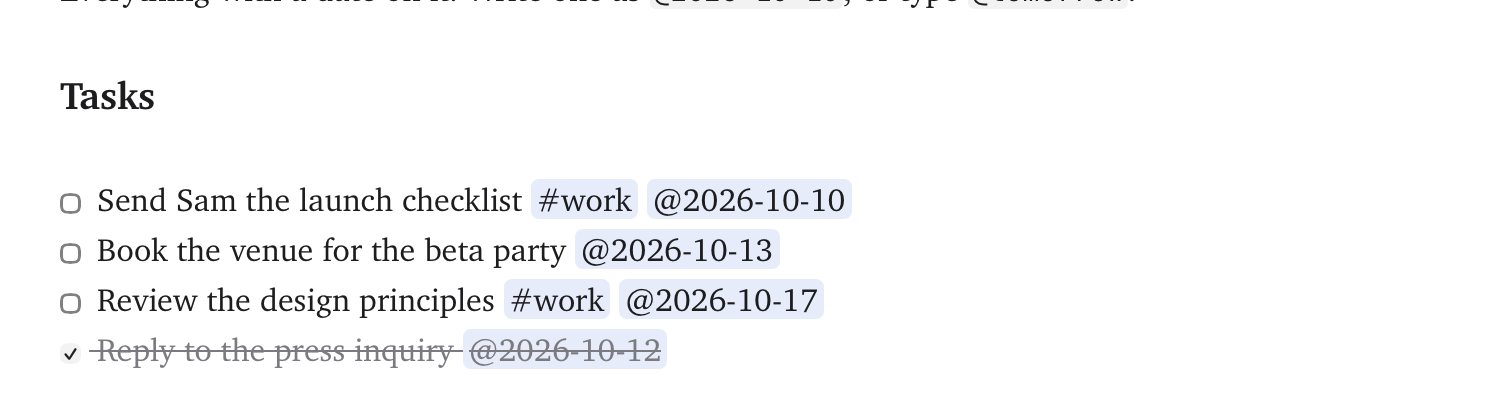
Writing dates in words
You don't have to type the date out. Type @ and a word, and Jetfold offers the dates it could mean, each with its day:
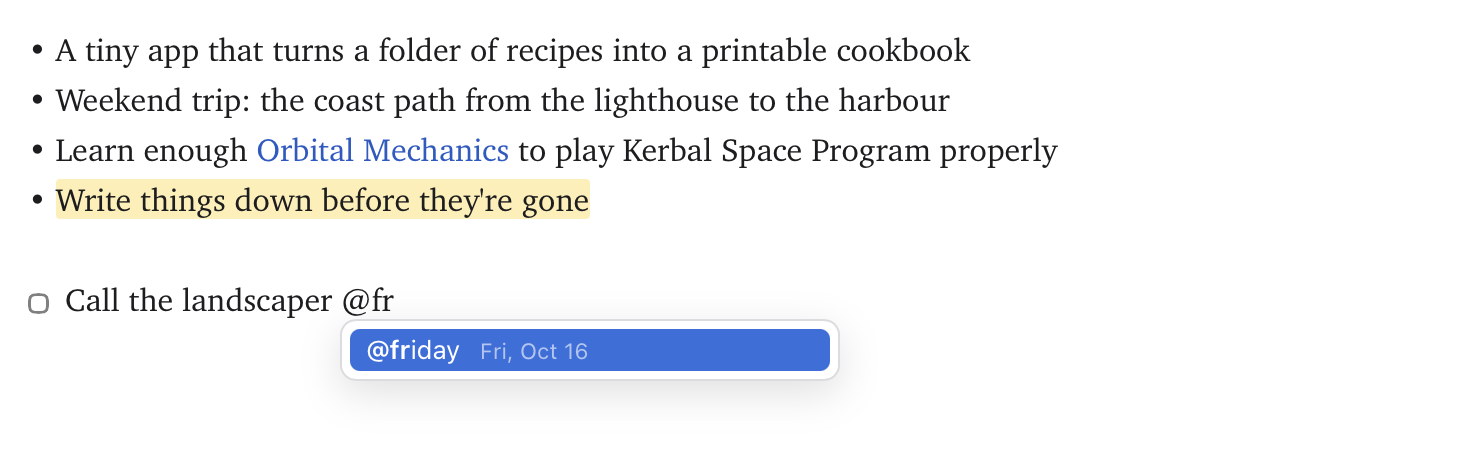
| You type | You get (on Tuesday 13 October 2026) |
|---|---|
@today, @tomorrow, @yesterday |
@2026-10-13, @2026-10-14, @2026-10-12 |
@friday or @fri (any weekday) |
the coming one: @2026-10-16. Today's weekday means a week from today |
@next week |
next Monday: @2026-10-19 |
@next month |
the same day next month: @2026-11-13 |
@in 3 days, @in 2 weeks |
@2026-10-16, @2026-10-27 |
Pick one from the list with Return or Tab. For one-word dates you don't even need the list: type @tomorrow and a space (or punctuation), and it turns into the date as you go. The note only ever holds the real date, so it means the same thing tomorrow as it does today.
Go → Agenda (⌥⌘A) shows the sidebar's Agenda view: every date in your notes, grouped as Overdue, Today, Tomorrow, Next 7 days and Later (see Views). Click a date in a note to see everything on that day: its daily note, tasks and events, with the note you were in staying open.
- On a task, the date is a deadline:
- [ ] Send the invoice @2026-10-10is Overdue once the day has passed, until you tick it. Ticked tasks leave the agenda. - Anywhere else, the date is an event (a meeting, a trip). It shows until its day is over, then drops out.
Tasks
Go → Tasks (⌥⌘L) shows the sidebar's Tasks view: every open task (- [ ] …) in all your notes, in the middle column while you work through them (see Views). They're grouped:
Overdue: tasks whose
@datehas passedToday
Upcoming: dated tasks still to come, soonest first
No Date: the rest, most recently edited notes first
Click the circle, or press Space, to tick a task off. The note saves as usual; read-only notes are left alone.
Tasks in code blocks don't count, and a task's due date is the first
@dateon its line (@tomorrowworks too: see Writing dates in words).
Back and forward
Go → Back (⌘[) returns to the note you were in before, scrolled where you left it with the cursor where it was, and Go → Forward (⌘]) goes the other way. It works however you moved on: picking another note in the list, following a link, the palettes, a view or the calendar. Handy after following a [[link]] to check something.
If the note is in the list or view showing now, it's picked there; otherwise Jetfold goes to its folder. Notes trashed since are skipped.
Note Info
Click ⓘ at the top of the editor, or press ⌥⌘O (Note → Note Info), to open a panel about the note you're in. It has three tabs:
- Statistics: words, characters, paragraphs and an estimated reading time, plus when the note was created and last modified. Markdown symbols aren't counted as words.
- Table of Contents: the note's headings, indented by level, with the one the cursor is in highlighted. Click one to jump to it.
- Backlinks: the notes that link to this one, with a snippet of each link. Click one to open it.
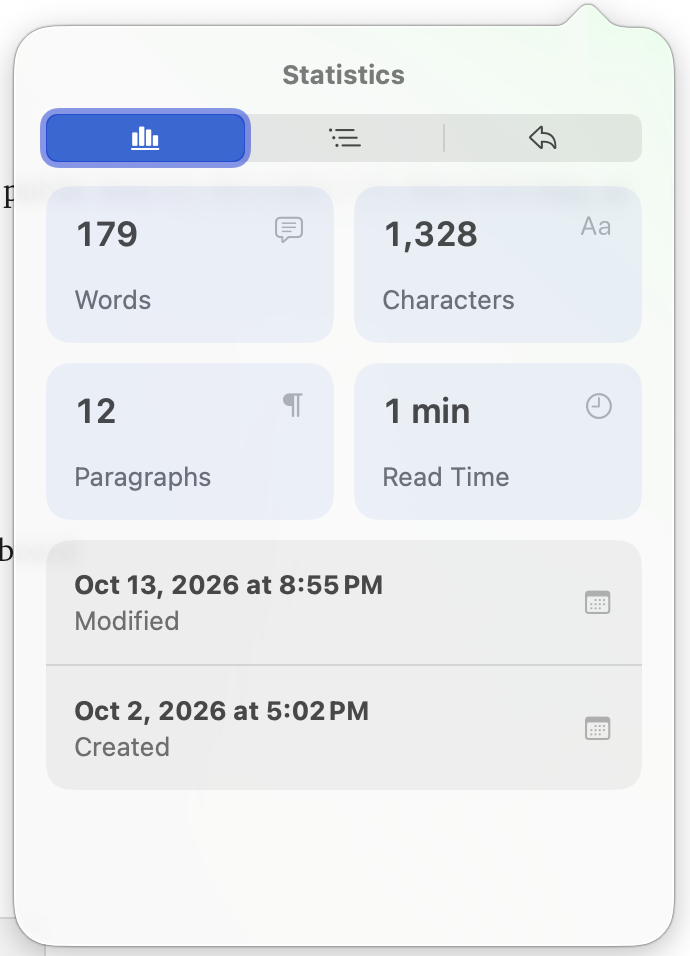
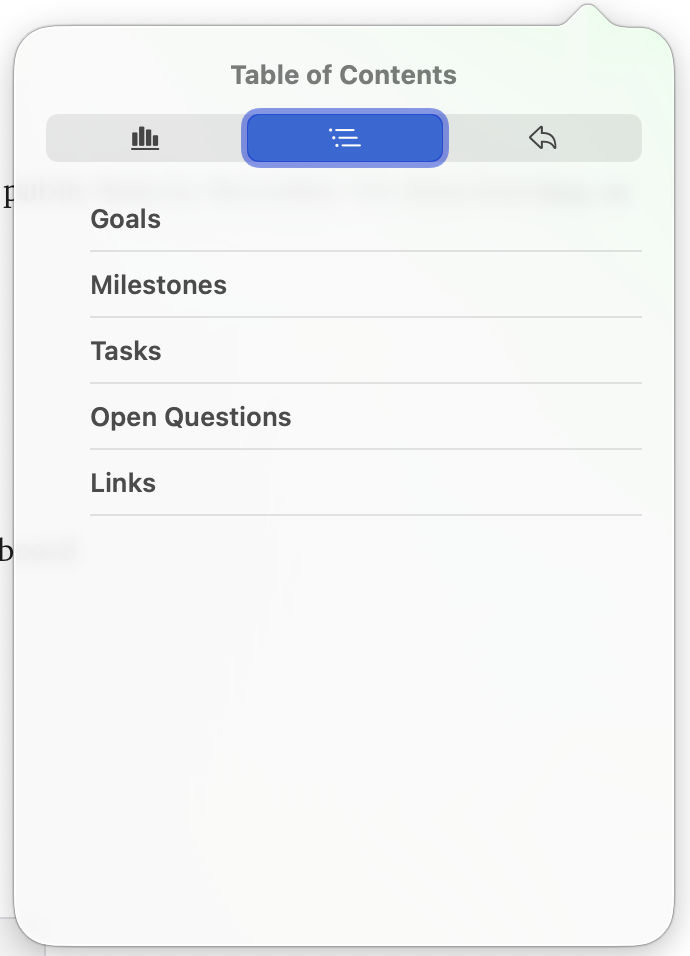
Note Info follows whichever note you last typed in or clicked, which is useful when several notes are stacked.
Open Random Note
Go → Random Note opens a note chosen at random. It's a nice way to rediscover old notes.