 Jetfold
Images and Attachments
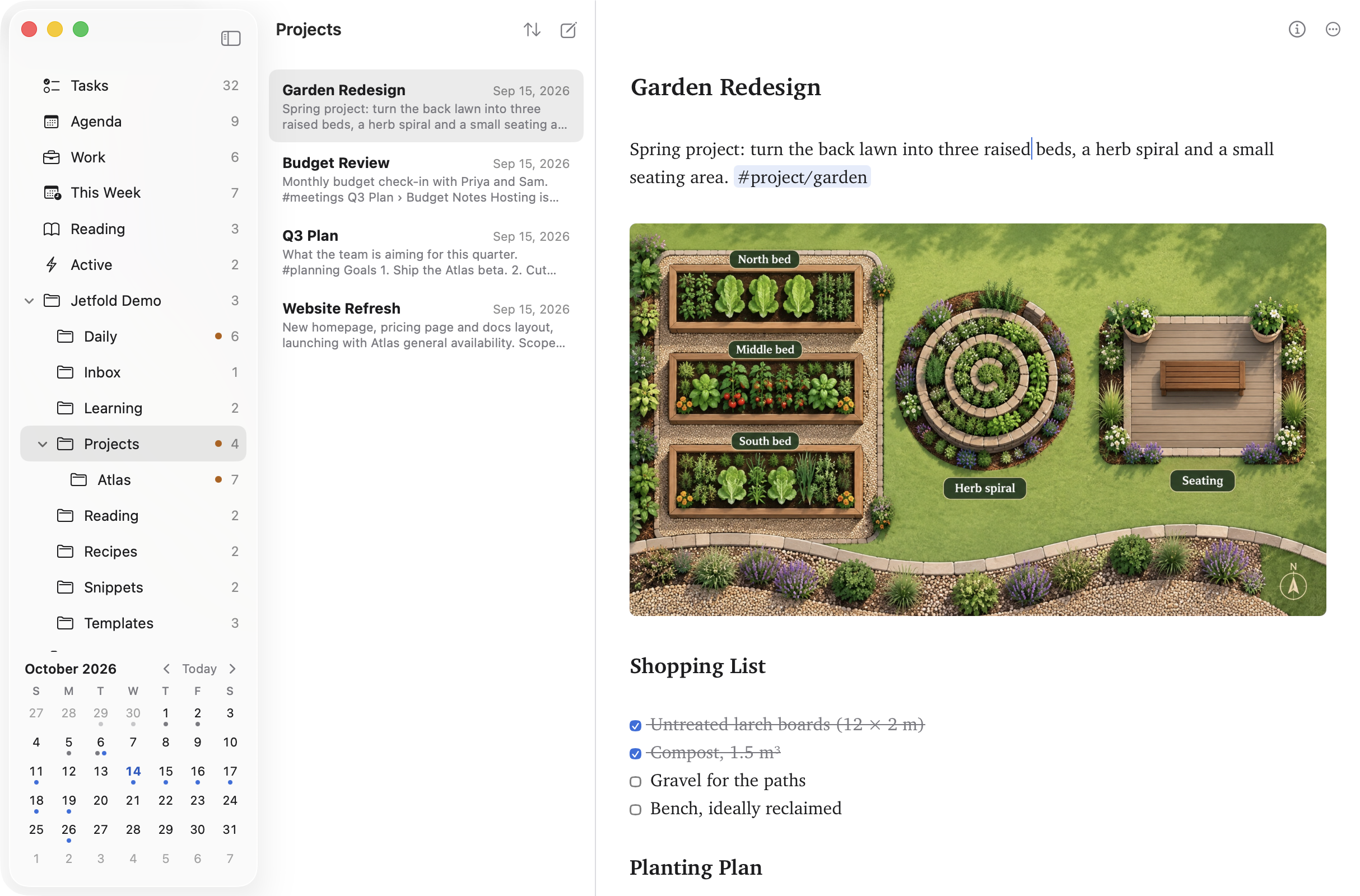
Jetfold shows images right inside your notes, and other files (a PDF, some code, a spreadsheet) as cards you can open.
Adding images
Drag and drop
Drag image files from Finder (or from most other apps) onto a note. Each image is added on its own line, at the point where you drop it.
- If the image is already inside your notes folder, Jetfold links to it where it is.
- Otherwise, Jetfold copies it into your images folder (see below) and links to the copy. The original isn't touched.
Paste
Copy an image (for example with ⌃⇧⌘4 for a screenshot to the clipboard) and paste it into a note with ⌘V. Jetfold saves it to your images folder and inserts the link at the cursor. Pasted images with generic names are saved as "Pasted image.png".
By hand
Write a standard Markdown image:

- A path starting with
/is from the top of your notes folder. Other paths are relative to the note. - Wrap paths that contain spaces in
< >, as above, or write spaces as%20. - Web images (
https://…) work too.
When the cursor is on an image's line, the Markdown source appears above the picture so you can edit it.
Where images are saved
Settings → Notes → Image path says where images you drop or paste are saved, as a template like the daily note path. The default, .assets/{original}, keeps each image under its own name in .assets. Folders starting with . are hidden from Jetfold's sidebar (and from Finder), which keeps them out of the way.
Text inside {curly braces} is filled in; everything else is used as written, and / separates folders:
| Placeholder | Becomes |
|---|---|
{original} or {name} |
The image's original file name (without extension) |
{note} |
The title of the note you dropped it on |
{uuid} |
A random unique ID |
any date code, e.g. {YYYY-MM-DD} |
The current date. Time codes HH, mm, ss work too |
For example, .assets/{note}/{original} keeps each note's images in a folder of their own, and media/{YYYY}/{uuid} sorts them by year under unique names. The extension is added for you. If a name is taken, Jetfold adds " 2", " 3" and so on rather than overwriting anything. Settings shows an example as you type.
Other files
Drop any other file on a note, or paste one copied in Finder, and Jetfold copies it into the same folder as your images (.assets by default), keeping its own name ("Report.pdf", or "Report 2.pdf" if that's taken). A file already inside your notes folder is linked where it is.
It goes in the note as an ordinary Markdown link on its own line:
[Report.pdf](</.assets/Report.pdf>)
and shows as a card: the file's name, what kind of file it is and its size, and a preview of its first page.
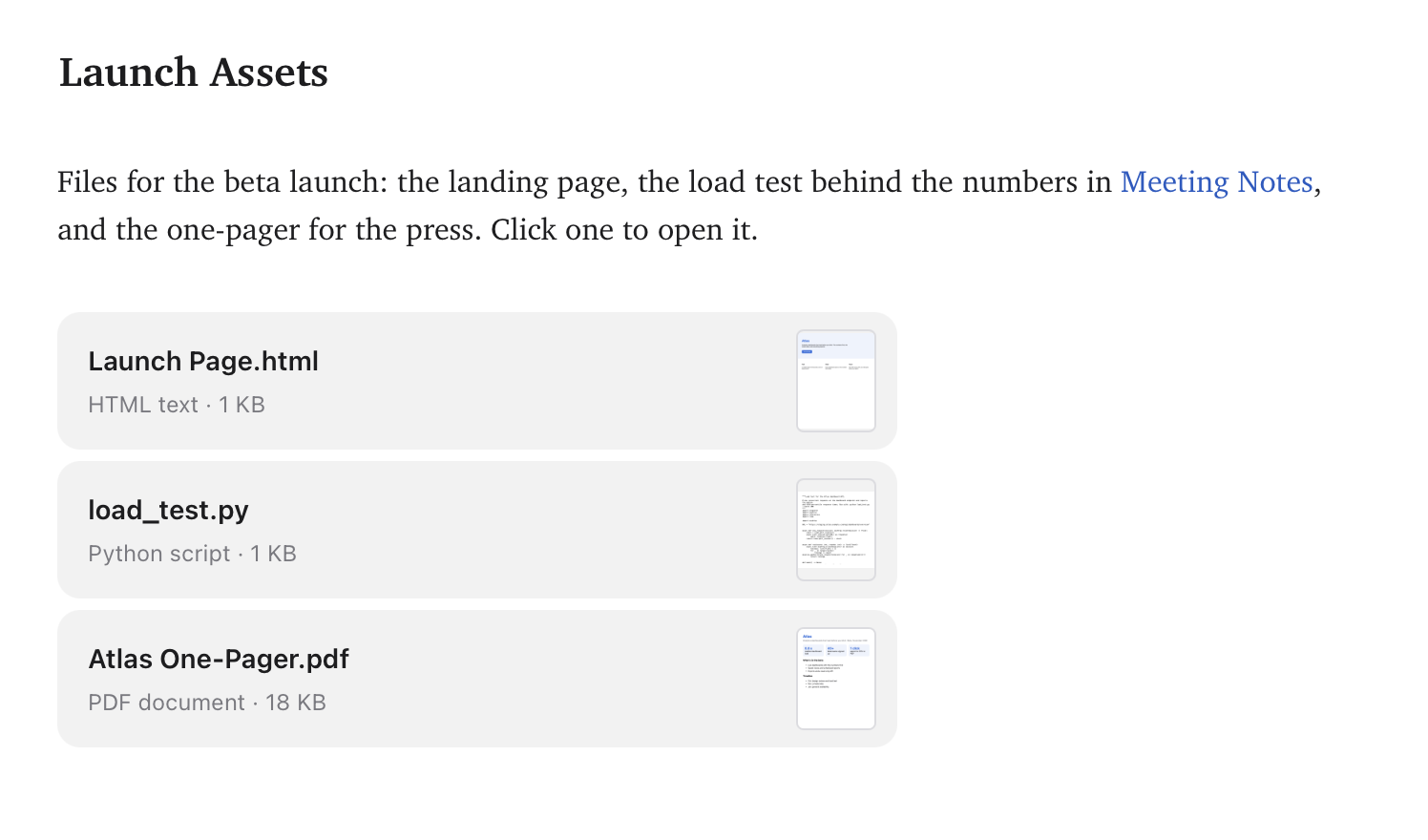
- Click a card to open the file in its app; ⌘-click shows it in Finder.
- Put the cursor on the line to edit the link; the card comes back when you move away.
- Any line holding only a link to a file in your notes folder becomes a card, so you can also add one by hand. A link in the middle of a sentence stays a link (⌘-click it to open the file).
- Other Markdown apps see a plain link, and exports keep it as one.
Unused attachments
Deleting a note leaves its images and files behind. File → Find Unused Attachments… lists the ones no note mentions any more, with a preview, folder, size and date for each. Tick the ones to go (or Select All) and choose Move to Trash; Finder's Put Back restores any you want back.
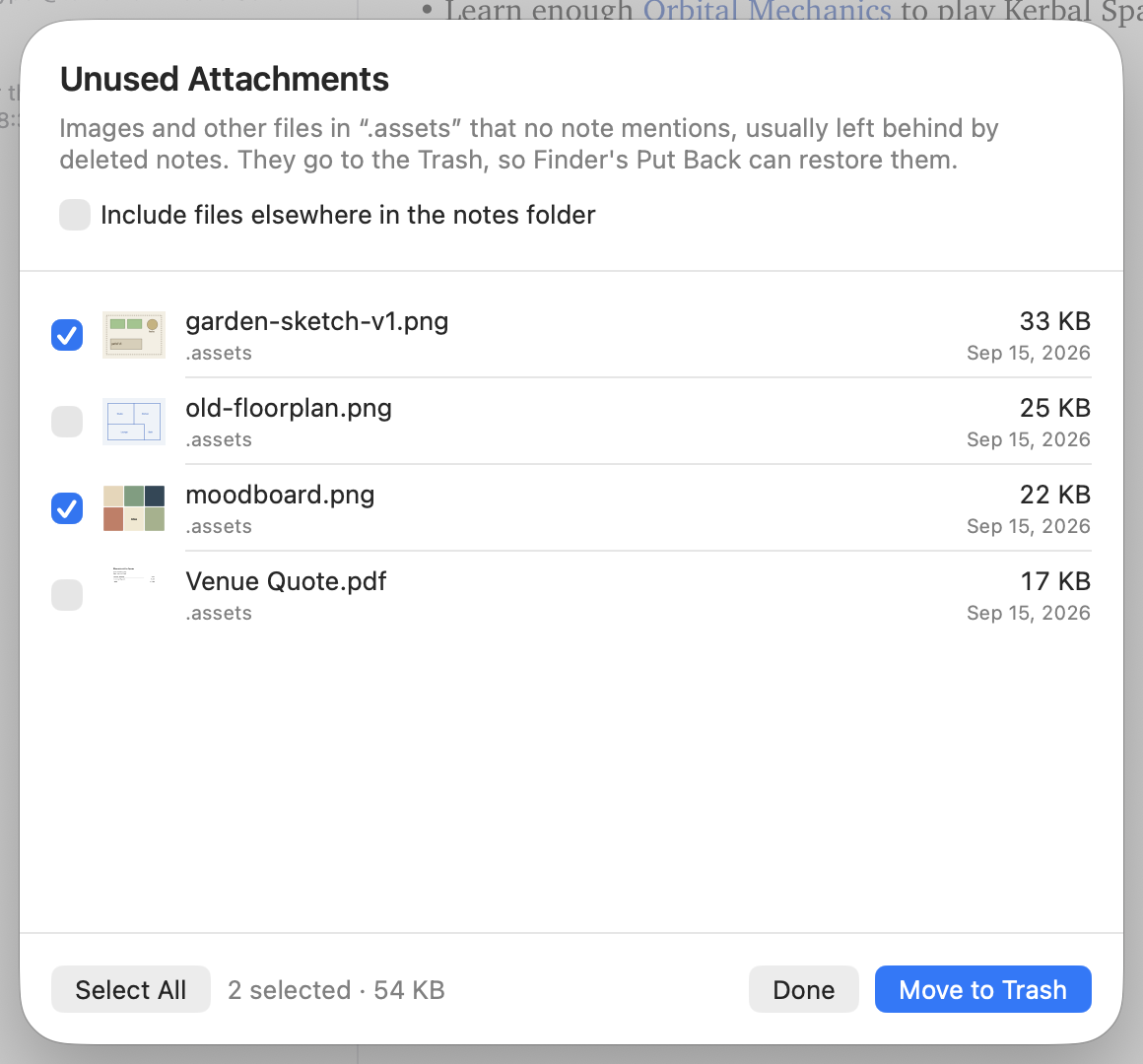
- It looks in your attachments folder (
.assets, or wherever your image path puts files). Turn on Include files elsewhere in the notes folder to check everywhere; files you keep beside your notes on purpose will show up then, so look before trashing. - It's careful: a file counts as used if any note (or template) mentions its name anywhere, even outside a link, so it may miss a few but won't offer one that a note still uses.
- Notes, hidden files, and Jetfold's and git's own folders are never listed.
Supported formats
PNG, JPEG, GIF, WebP, SVG, AVIF, TIFF, BMP and ICO show as images; anything else is an attachment. Images and files up to 50 MB can be pasted (dropped files can be any size). (HEIC photos from an iPhone aren't supported yet; export them as JPEG first.)