 Jetfold
Organizing Notes
Jetfold's folders are the real folders on your disk, and its notes are the real files. Anything you do in Jetfold (creating, renaming, moving, deleting) happens to those files, and anything you do in Finder shows up in Jetfold straight away.
Folders
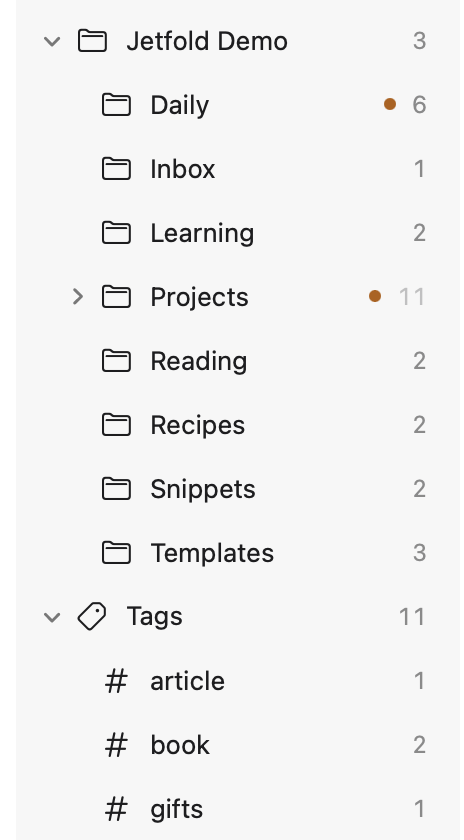
The sidebar shows your notes folder at the top, with every folder inside it underneath. Click a folder to see its notes. Click the disclosure arrow to expand or collapse it; Jetfold remembers which folders are open.
Note counts
Each folder shows how many notes it holds:
- An expanded folder, or a folder with no subfolders, shows the notes directly inside it.
- A collapsed folder with subfolders shows the total of every note inside it, subfolders included, in a dimmer color.
Turn the counts on or off with View → Note Counts.
Working with folders
Right-click a folder for:
| Item | What it does |
|---|---|
| New Note | Creates a new note inside this folder |
| New Folder | Creates "New Folder" inside this folder, ready to rename |
| Rename | Renames the folder in place (or select it and press Return) |
| Reveal in Finder | Shows the folder in a Finder window |
| Move to Trash | Moves the folder and everything in it to the Trash, after asking |
⇧⌘N (File → New Folder) creates a folder inside the selected one. With the sidebar focused, ⌘⌫ moves the selected folder to the Trash, after asking.
Moving folders: drag a folder onto another folder. You can't move a folder into itself or one of its own subfolders, and Jetfold won't move a folder somewhere that already has one with the same name.
Folders deleted with Move to Trash go to the macOS Trash, so you can use Finder's Put Back to restore them.
Renaming or moving a folder updates every wikilink that points into it, so your links keep working.
Views: Tasks and Agenda
At the top of the sidebar, Tasks and Agenda gather things from all your notes, with how many there are beside each.
- Tasks: every open task (
- [ ] …), grouped Overdue, Today, Upcoming (by their@date, soonest first) and No Date. - Agenda: every dated line, grouped Overdue, Today, Tomorrow, Next 7 days and Later. An open task's date is a deadline; any other date is an event that drops off once its day is over.
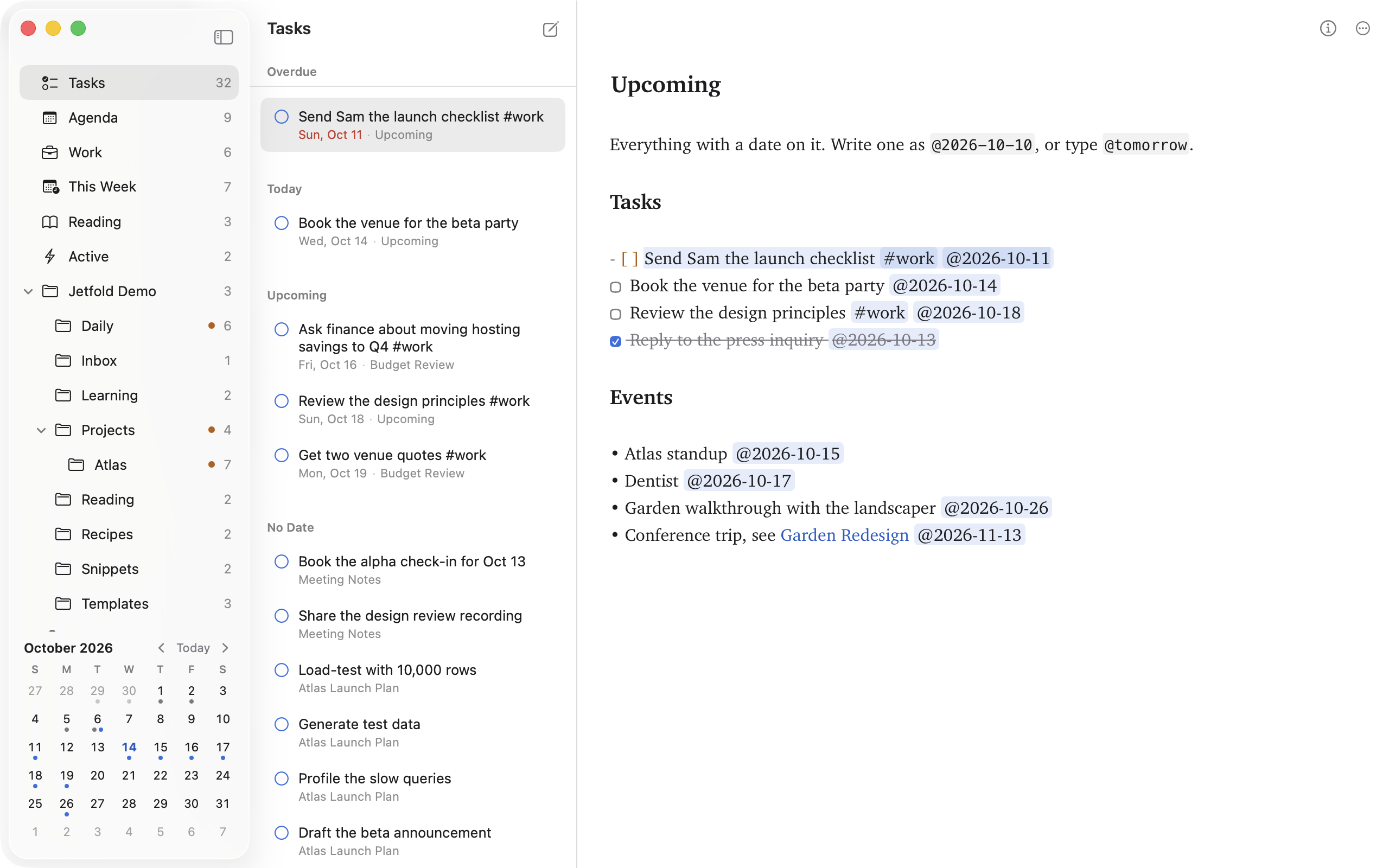
Pick a view and its rows fill the middle column in place of a folder's notes. Click a row, or move through them with ↑ and ↓, and its note opens in the editor at that line, while the view stays, so you can work down a list. Click a task's circle, or press Space, to tick it off; it saves like any edit, and leaves the list. Views update as your notes change.
Right-click a row for Show in Folder (leaves the view for the note's folder, with the note picked and the line selected), Open in New Window, Reveal in Finder and, on a task, Mark as Done.
Pick a folder or a tag to go back to notes. Go → Tasks (⌥⌘L) and Go → Agenda (⌥⌘A) jump to a view from anywhere, and clicking a date in a note shows that day.
Arranging the sidebar
Drag Tasks, Agenda, your own views, the notes folder's row or Tags onto another of them to move it there; a line shows where it will land. Don't use something? Turn it off under View → Sidebar (Tasks, Agenda, Folders, Tags, the calendar and each of your own views have a switch), or right-click it and choose Hide; turned back on, it returns to its usual place. With everything off but your folders, the sidebar is just your notes.
The order is saved with the workspace's settings, in .jetfold/settings.json, as a list: "sidebar": ["tasks", "agenda", "notes", "tags"]. Anything left out of it is hidden, and your own views appear there as "view:work". Views you haven't placed show after the other views; ones you hide are listed under "hiddenViews".
Your own views
Make views of your own: work tasks, this week's dates, notes whose front matter says status: active. Choose View → Sidebar → New View…, or right-click a view in the sidebar.
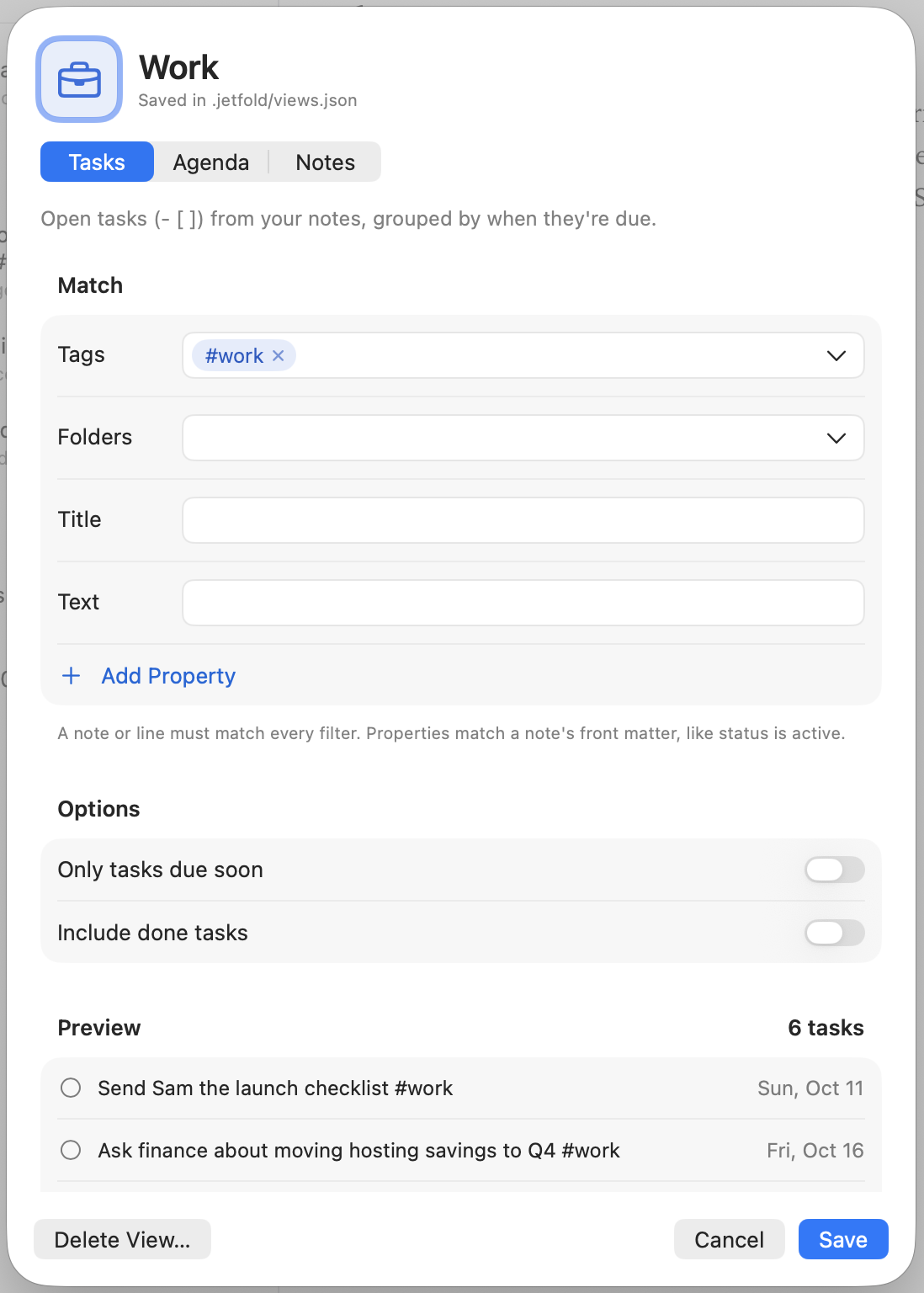
The editor has:
- An icon and a name. Click the icon to choose another, or type the name of any SF Symbol.
- What it lists: Tasks (open tasks, grouped by when they're due), Agenda (dated lines) or Notes (whole notes, listed like a folder).
- Filters. Add Tags and Folders as chips: type and press Return, pick a suggestion, or choose from the ▾ menu of everything in your notes. With two or more tags, choose whether a note needs any of them or all of them. Title finds words in the note's name, Text in the line or note, and Property matches a note's front matter (
statusisactive, waiting). A note or line has to match every filter, and a filter with several values matches any of them. - Options: for tasks and dates, only the next few days or weeks; for tasks, done ones too; for notes, their own order.
- A live preview of what the view will list, with a count, updating as you type.
Right-click one of your views for Edit View…, Duplicate, Hide and Delete View…. Right-click Tasks or Agenda and choose Duplicate as New View… to start from one of them. Your views are listed under View → Sidebar too, to show or hide each one.
views.json
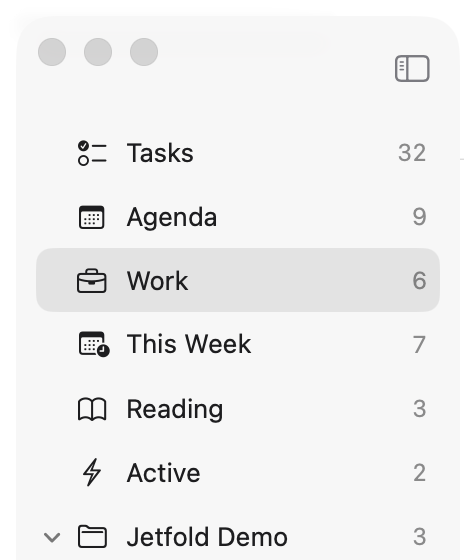
Views are saved in .jetfold/views.json in your notes folder, so they sync and live in git with your notes. You can edit the file by hand too (⌘P → Edit views.json opens it); it's read again whenever Jetfold comes to the front. The editor rewrites the file in a standard layout when it saves.
{
  "views": [
    { "name": "Work",      "icon": "briefcase", "show": "tasks",  "tag": "#work" },
    { "name": "This Week", "icon": "calendar",  "show": "agenda", "within": "7 days" },
    { "name": "Reading",   "icon": "book",      "show": "notes",  "tag": ["#book", "#article"], "sort": "created" },
    { "name": "Active",    "icon": "bolt",      "show": "notes",  "folder": "Projects", "property": { "status": "active" } }
  ]
}
show says what the view lists:
show |
Lists | Like |
|---|---|---|
tasks |
Tasks, grouped Overdue, Today, Upcoming and No Date | the Tasks view |
agenda |
Dated lines, from overdue to later | the Agenda view |
notes (the default) |
Whole notes, as an ordinary note list | a tag's notes |
Filters narrow it down. Give any of them; a note or line has to match every filter given, and a filter with a list of values matches any of them (for tags, allTags asks for all):
| Filter | Keeps | Example |
|---|---|---|
tag |
Lines with the tag (or tasks in a note listing it under tags: in its front matter). For notes views, notes using it anywhere. Nested tags count: #work includes #work/client. |
"tag": "#work" |
folder |
Notes in the folder or the folders inside it | "folder": ["Projects", "Areas"] |
title |
Notes (or for tasks and dates, the notes they're in) with all the words of one entry in their name | "title": "self review" |
text |
Lines (or for notes views, notes) with all the words of one entry, in the line or the note's name | "text": "invoice" |
property |
Notes whose front matter has one of the values, ignoring case | "property": { "status": ["active", "waiting"] } |
within |
Tasks due, or dates, from now to that far ahead (overdue ones too) | "within": "2 weeks" |
allTags |
Every tag in tag must be there, not just one |
"allTags": true |
done |
Tasks views: ticked tasks too, under Done | "done": true |
sort |
Notes views: title, edited or created, instead of the list's own order |
"sort": "title" |
iconis the name of any SF Symbol (browse them in Apple's free SF Symbols app). Without one, or with a name that doesn't exist, a view gets its type's icon.- Views work like Tasks and Agenda: their rows open notes beside the list, circles tick tasks off, and right-click has Show in Folder. A notes view's list works like any note list.
- Templates are left out.
- If part of the file can't be used (a misspelt setting, a view without a name), the rest still works, and a views.json has problems row in the sidebar says what. Click it for the details.
Tags in the sidebar
Your #tags are listed in the sidebar, under your folders, in a Tags group. To hide it, turn off View → Sidebar → Tags.
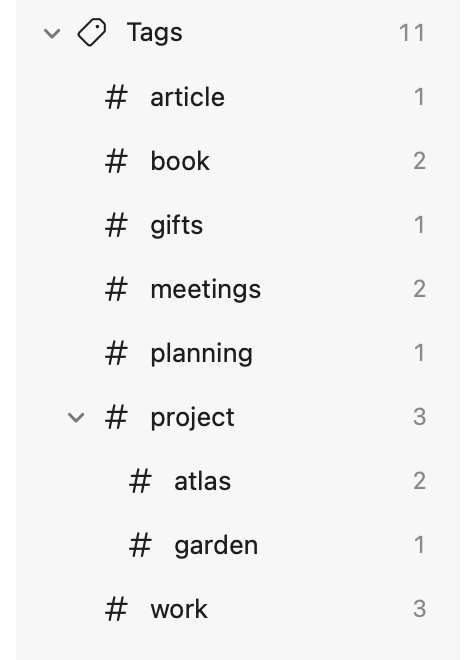
- Click Tags to list every note that has at least one tag. Its count is how many notes that is.
- Click a tag to list every note that uses it, from every folder. Nested tags sit under their parent like subfolders (
#project/atlasunder#project), and picking a parent includes the notes of the tags under it. - Collapse the group with its arrow when you don't need it. Jetfold remembers.
- Drag notes onto a tag to tag them. The tag is added to the last line if that line holds only tags, otherwise on a new paragraph at the end. Notes that already have the tag, and read-only notes, are left alone.
- ⌘N with a tag selected creates a note that starts with that tag, so it belongs in the list you're looking at.
- Right-click a tag → Rename… to rename it in every note that uses it. Tags nested under it follow (
#project/atlasbecomes#work/atlaswhen#projectbecomes#work), and renaming onto an existing tag merges the two. Read-only notes are left alone. - Right-click → Remove from All Notes…, or ⌘⌫ with a tag selected, removes that tag (and the tags under it) from every note that uses it, after asking. Read-only notes are left alone.
The note list
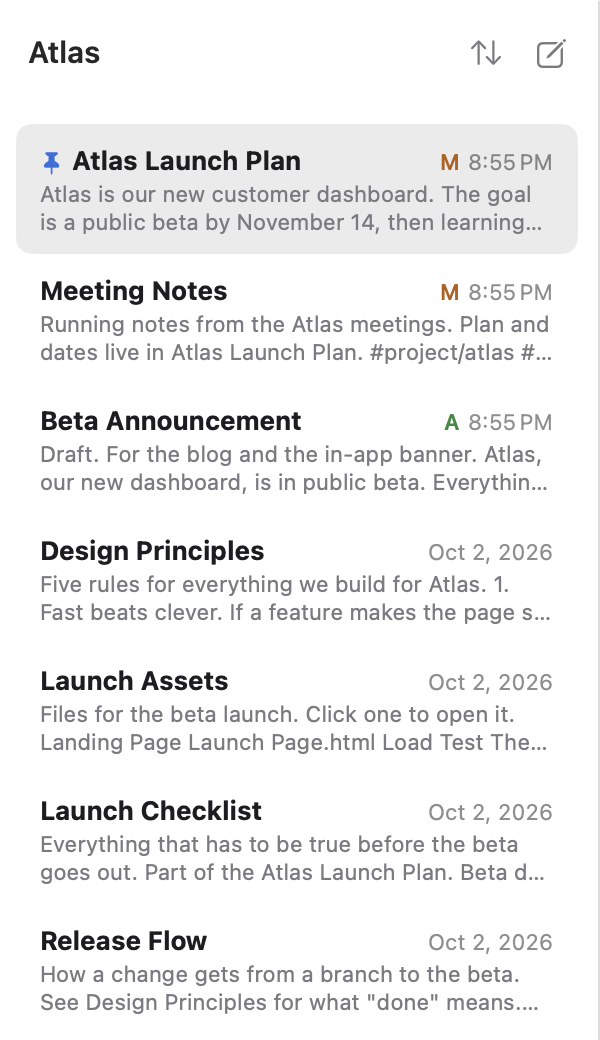
The middle column lists the notes in the selected folder or tag. Each row shows the note's title and, on the right, the date it was last edited. With previews on, a line or two of the note's text sits under the title.
Sorting and display
Everything here is in the View → Note List section of the View menu:
Sort By sorts by Title, Date Edited or Date Created, Ascending or Descending. The default is Date Edited, newest first. The sort button above the list has the same choices. The date beside each note is the one the list is sorted by.
Date Created is the file's own creation date, which Jetfold keeps when it saves. Copying notes to a new Mac, cloning them with git, or editing them in some other apps can reset it.
Previews shows or hides the text under each title.
Dates shows or hides the dates.
Git Status shows or hides the git letters beside each note.
Selecting notes
| Action | Result |
|---|---|
| Click | Select one note |
| ⌘-click | Add or remove a note from the selection |
| ⇧-click | Select a range of notes |
| ↑ / ↓ | Move the selection |
| ⇧↑ / ⇧↓ | Extend the selection |
Editing several notes at once
When you select more than one note, the editor shows all of them stacked, one after another, each with its own title. You can edit any of them; each one saves on its own.
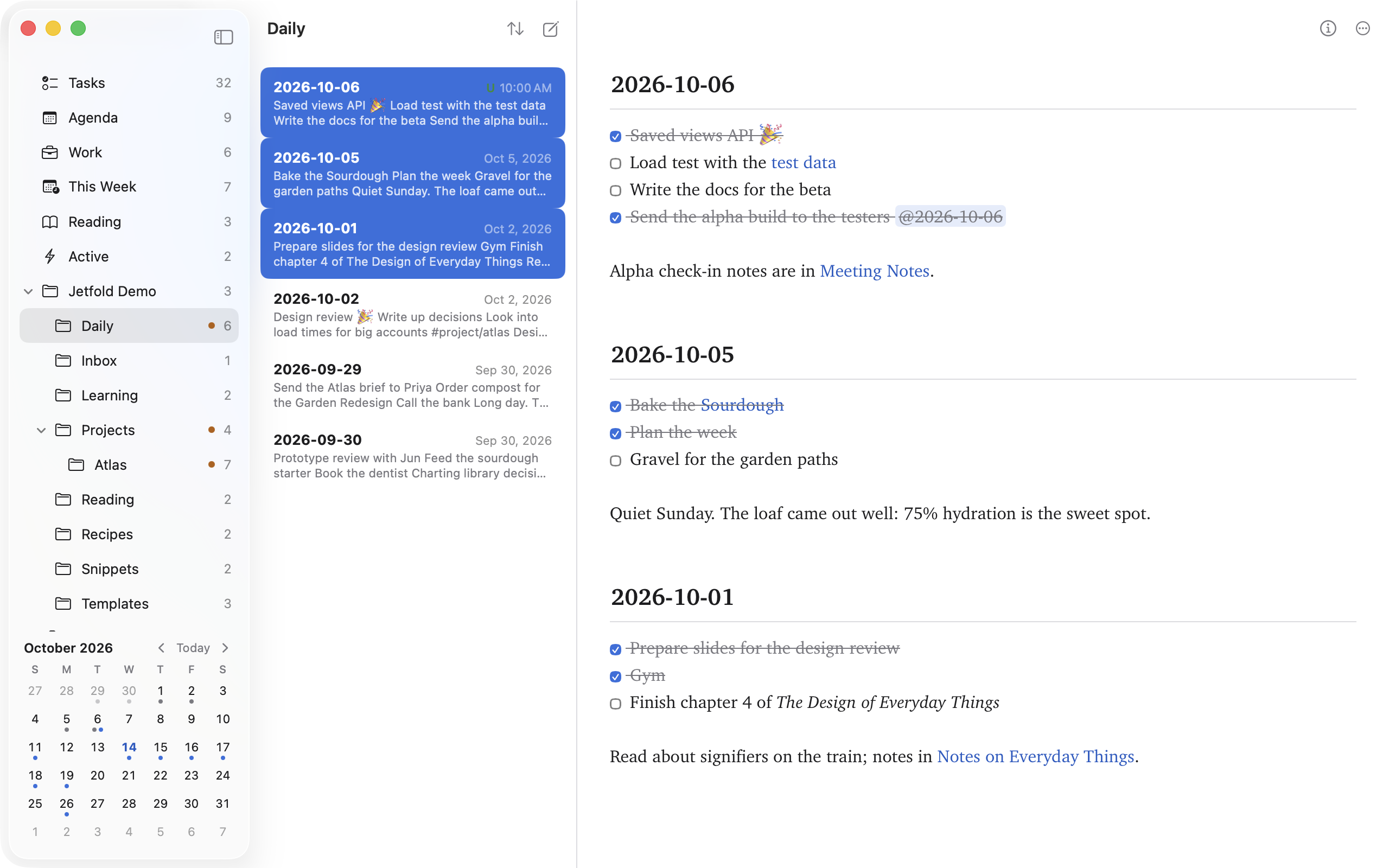
This is handy for reviewing a week of daily notes, or comparing two drafts.
The Note menu
Everything you can do with a note is in the Note menu, in the ⋯ menu at the top of the editor, and when you right-click a note in the list. With several notes selected, the actions apply to all of them.
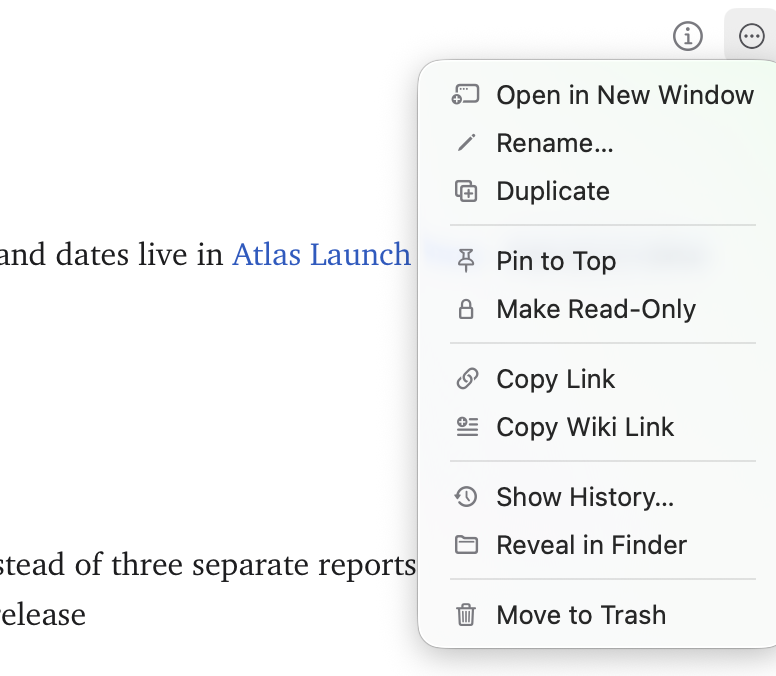
| Item | What it does |
|---|---|
| Open in New Window | Opens the note in its own window (see below) |
| Rename… | Puts the cursor in the note's title |
| Duplicate | Makes a copy next to the original, named "Name copy" (then "Name copy 2" and so on) |
| Pin to Top / Unpin | Keeps the note at the top of its list |
| Make Read-Only / Make Editable | Protects the note from edits |
| Copy Link | Copies a jetfold:// link that opens the note from other apps (see Opening Jetfold from Other Apps) |
| Copy Wiki Link | Copies [[Note Name]], ready to paste into another note |
| Show History… | Shows the note's git history (see Git Integration) |
| Note Info | Opens Note Info (Note menu only) |
| Reveal in Finder | Shows the file in Finder |
| Move to Trash | Moves the note to the Trash |
Pinning
Pin to Top keeps a note at the top of its folder's list, whatever the sort order, with a pin beside its title. Choose Unpin to put it back.
Pins are stored in the workspace's settings, not in your notes, so they don't add anything to your files. They follow notes when you rename or move them.
Read-only notes
Make Read-Only protects a note you don't want to change by accident, such as a finished document or a reference. A read-only note shows a lock in the list, and its text can be read, selected and copied but not edited. Tagging by dragging, removing tags, and other changes that would edit the note leave it alone. Choose Make Editable to unlock it.
Like pins, this is stored in the workspace's settings; the file itself isn't changed.
Renaming a note
Click the title at the top of the note (or choose Note → Rename…), type a new name, and press Return (or click elsewhere). The file on disk is renamed to match. The extension (.md or .txt) is kept. Escape cancels.
Renaming a note updates every wikilink that points to it.
Moving notes
Drag one or more notes from the list onto a folder in the sidebar. If you drag a note that's part of a selection, the whole selection moves.
Hover over a collapsed folder while dragging, and it springs open after a moment so you can drop into a subfolder.
Jetfold checks every note before moving any, so a name clash in the destination stops the whole move rather than leaving half of it done. Moved notes keep their "last edited" dates, and links to them are updated.
Deleting notes
Choose Move to Trash, or select notes in the list and press ⌘⌫. Notes go to the macOS Trash, so you can restore them with Finder's Put Back. Jetfold doesn't ask for confirmation, because nothing is permanently deleted.
Note windows
Double-click a note (or choose Open in New Window) to open it in a window of its own, with just the title and the text. It's useful for keeping a reference note or a to-do list beside your other work.
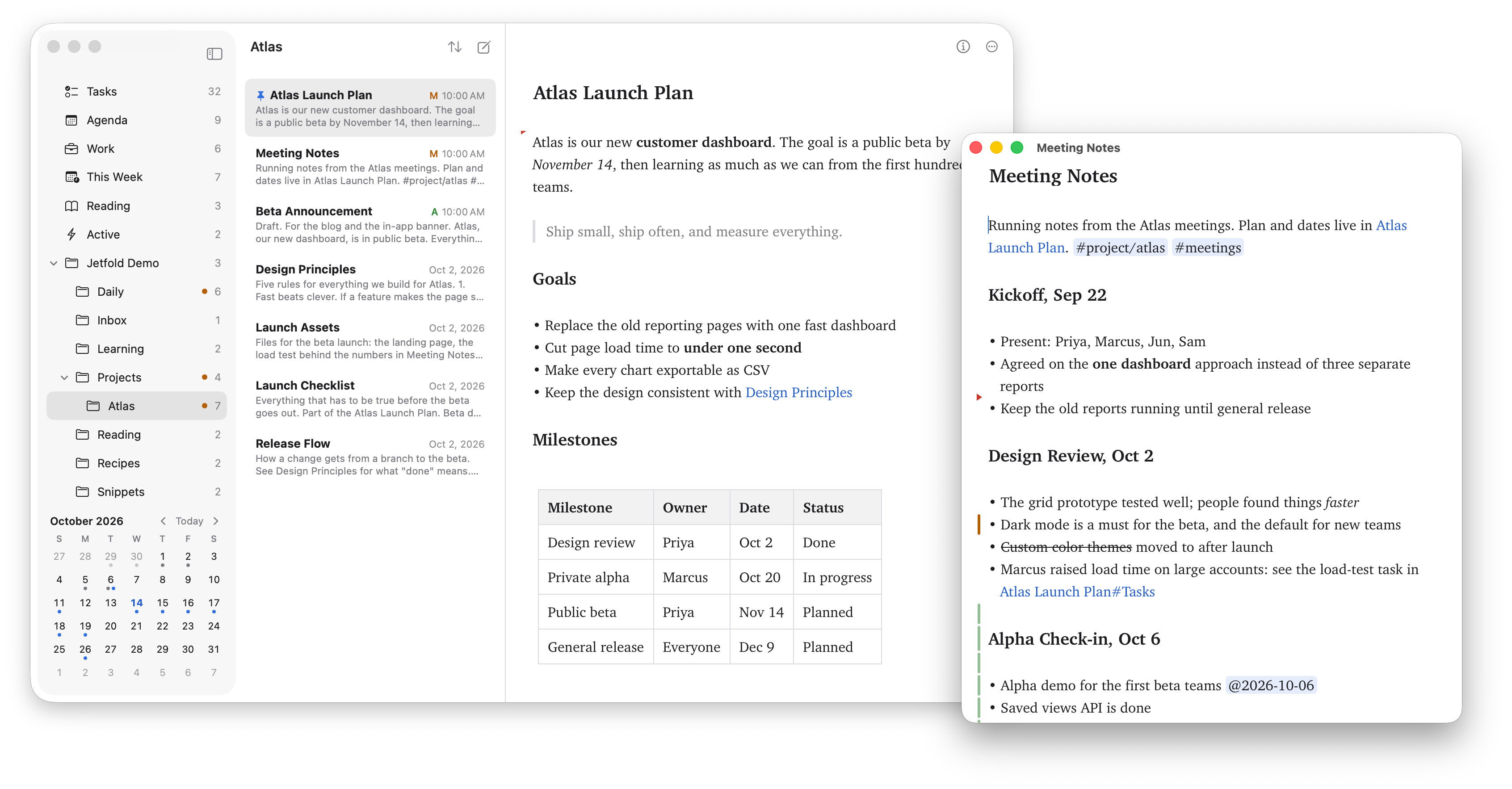
- Each note gets at most one window. Opening it again brings that window to the front.
- Edits in a note window appear in the main window at once, and the other way round.
- Following a link from a note window opens the linked note in another note window.
- The palettes (⌘P, ⌘O and the rest) work in note windows too.
- ⌘W saves and closes the note window.