 Jetfold
Settings and Themes
Open Settings with Jetfold → Settings… (⌘,). Changes take effect immediately; there's no Save button.
Every setting belongs to the open workspace: it's kept in the notes folder, in .jetfold/settings.json, so each folder has its own and they travel with it (and get committed with it, if it's a git repository). With no workspace open, Settings is greyed out.
General
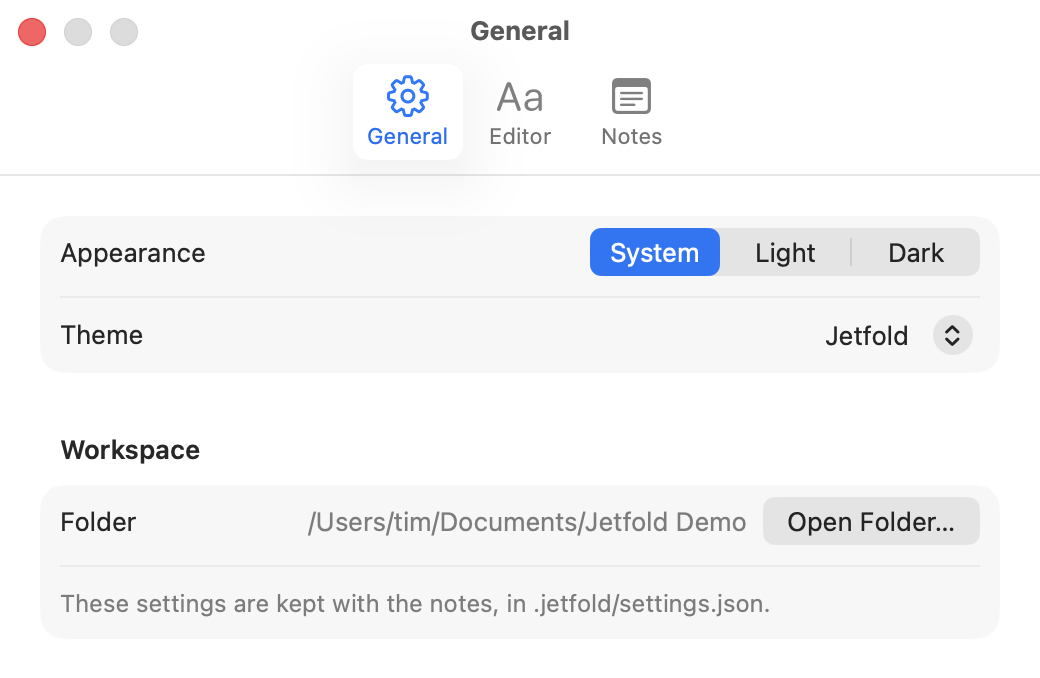
Appearance and theme
Appearance is System, Light or Dark. System follows your Mac's setting and switches automatically. The choice applies to every Jetfold window, its menus and dialogs.
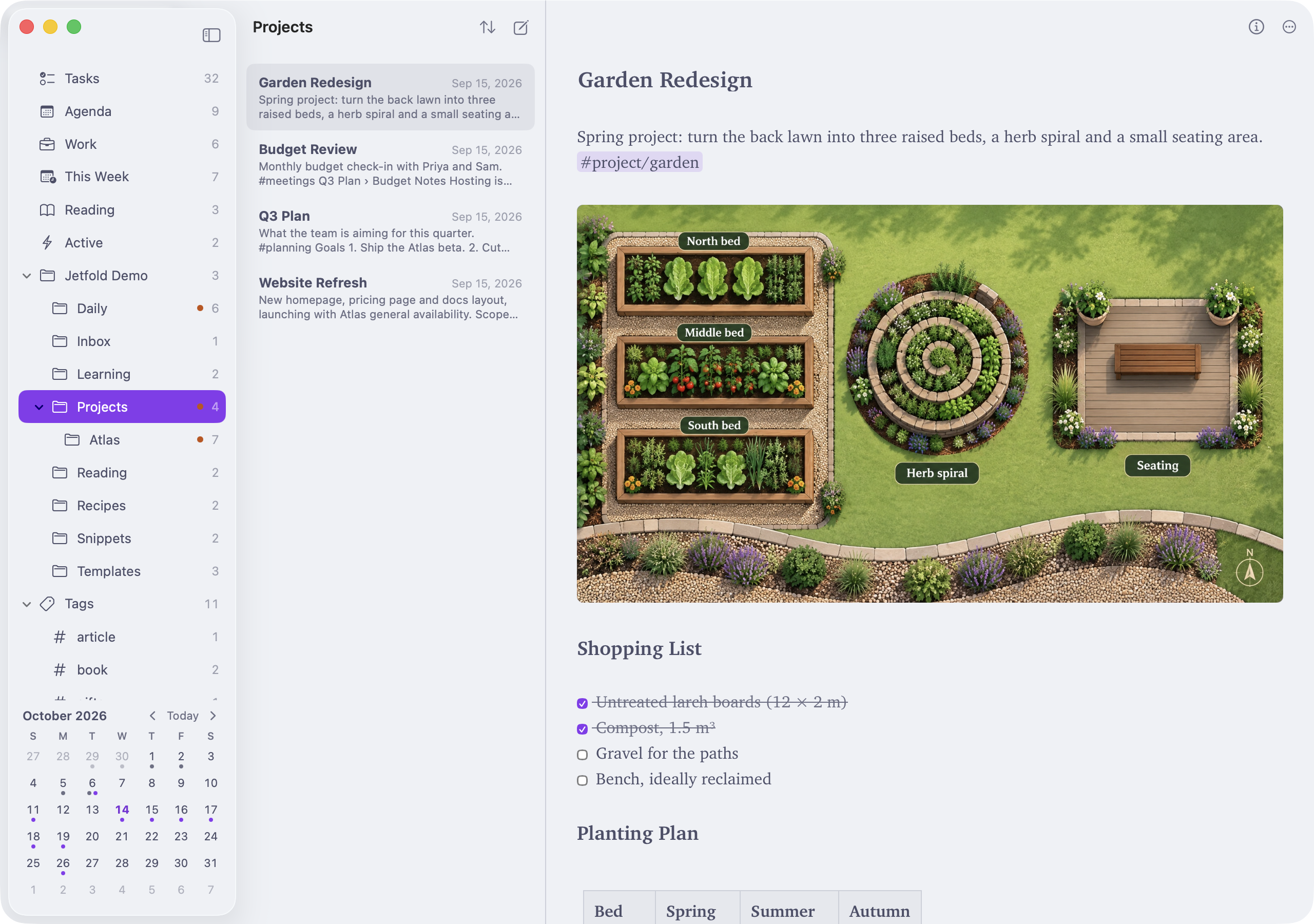
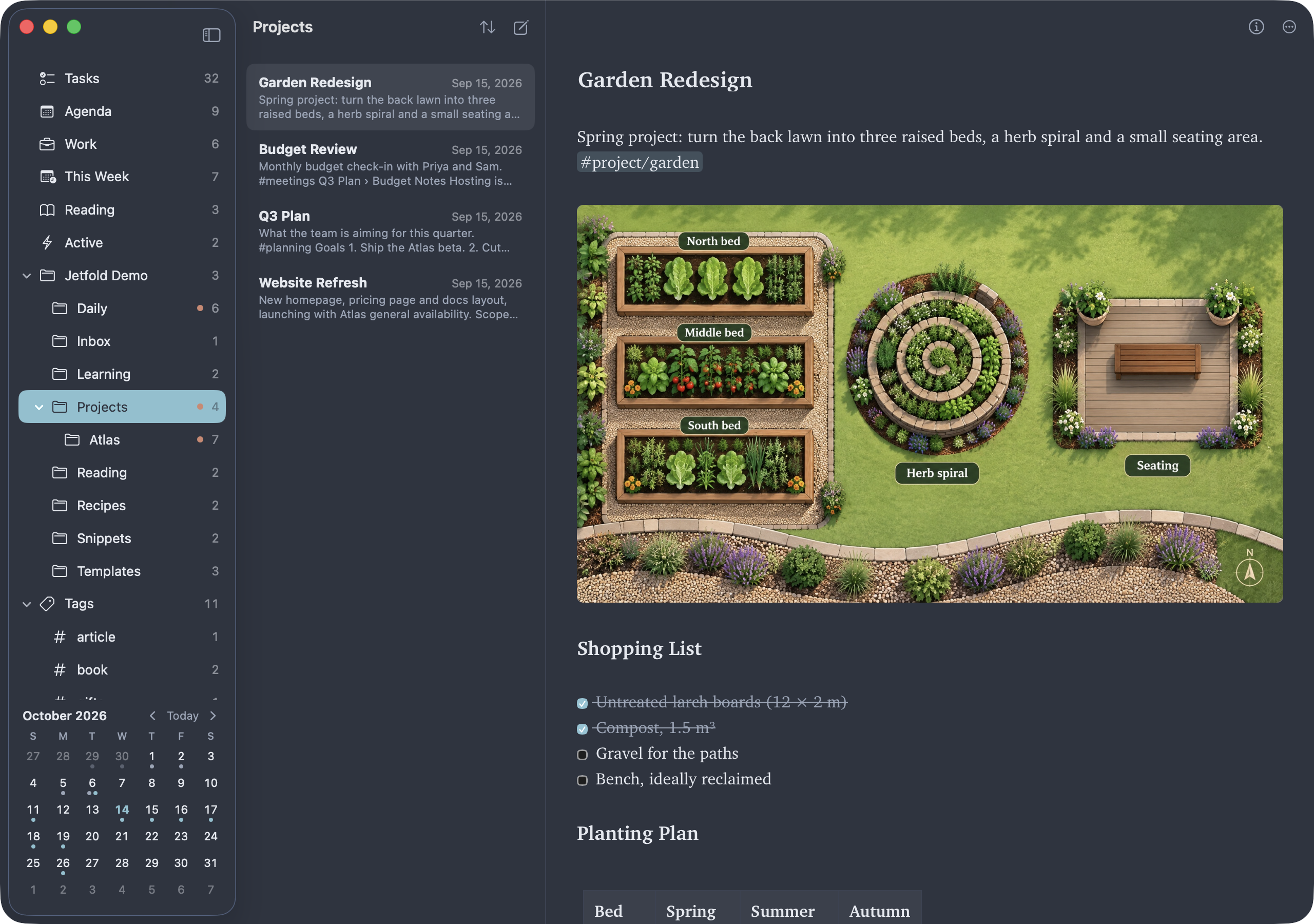
Theme picks Jetfold's colors:
| Theme | Light | Dark |
|---|---|---|
| Jetfold (the default) | Crisp white, with the standard Mac sidebar | Near-black, with the standard Mac sidebar |
| Solarized | Warm cream | Deep teal |
| Nord | Cool frost grey | Polar night blue |
| Catppuccin | Soft lavender grey (Latte) | Dark blue-grey with pastels (Mocha) |
| High Contrast | Black on white | White on black |
Every theme has a light and a dark look, and Appearance decides which one you see, so a theme works the same with System, Light or Dark.
A theme colors the whole window, not just the note: the sidebar, the note list and its selection, the column dividers, the palettes, Note Info, the history window, the git badges and changed-line marks, and the conflict bar. Jetfold keeps the standard Mac sidebar look; the other themes fill the sidebar with their own color so it reads as one surface with the note list.
Your own theme
A workspace can have a theme of its own: a file called theme.json in the notes folder's .jetfold folder, next to settings.json. When it's there, the Theme menu lists it as Workspace (or Workspace (Forest) if you give it a name), under the built-in themes.
A workspace theme starts from a built-in theme and changes only the colors you list, so it can be as short as one color:
{
  "name": "Forest",
  "base": "nord",
  "light": {
    "accent": "#2f7d4f",
    "selection": "#2f7d4f",
    "surface": "#f7f5ef",
    "sidebar": "#f7f5ef"
  },
  "dark": {
    "accent": "#7fd1a0",
    "selection": "#3f8f5f",
    "on-selection": "#ffffff"
  }
}
name(optional) is shown in the menu.base(optional) is the built-in theme it starts from:jetfold(the default),solarized,nord,catppuccinorhigh-contrast.lightanddark(both optional) are the colors to change in each appearance. Anything you leave out comes from the base theme, including colors added in future versions of Jetfold.- colors are CSS colors:
#2f7d4f,#2f7d4f80(with transparency),rgb(47, 125, 79),rgba(0, 0, 0, 0.08),hsl(145, 45%, 34%), or a name liketeal.
Save the file and switch back to Jetfold, and the new colors show straight away. Settings points out a file it can't read, and any color it skipped (a misspelled name, or a value that isn't a color).
The file travels with the notes folder, like settings.json, so anyone who opens the folder can pick the same theme. Jetfold doesn't check that your colors are readable together the way it checks the built-in themes, so try the theme in both Light and Dark.
The colors
| Key | Used for |
|---|---|
surface |
The note, the note list and the window behind them |
sidebar |
The sidebar's fill (in the default theme, see-through to the system's sidebar) |
bg |
The find bar's text fields |
text, muted |
Text, and quieter text (previews, dates, counts, Markdown symbols) |
border |
Column dividers, table lines, quote bars, rules |
hover |
The find bar's buttons under the pointer |
accent, accent-text, on-accent |
The accent color; links and accent-colored text; text on the accent |
accent-soft |
Light accent backgrounds: #tags, @dates, selected table cells |
selection, on-selection |
A selected row (sidebar, note list, palettes) and its text |
selection-blur |
A selected row while another part of the window has the keyboard, and selected text |
highlight-bg |
==highlights== |
code-bg |
Code, code blocks and table headers |
find-match, find-current |
Find results in the note, and the current one |
danger |
Errors, deletions |
warn, warn-soft |
Warnings, and the "changed on disk" bar |
git-added, git-modified, git-removed |
Git letters, folder dots and changed-line marks |
syn-keyword, syn-string, syn-comment, syn-number, syn-function, syn-type, syn-property |
Code highlighting; strings, numbers, types and so on |
Workspace
The notes folder Jetfold is showing. Click Open Folder… to open another one; switch between folders you've opened with File → Open Workspace. Any unsaved edits are saved first.
Editor
Editor font
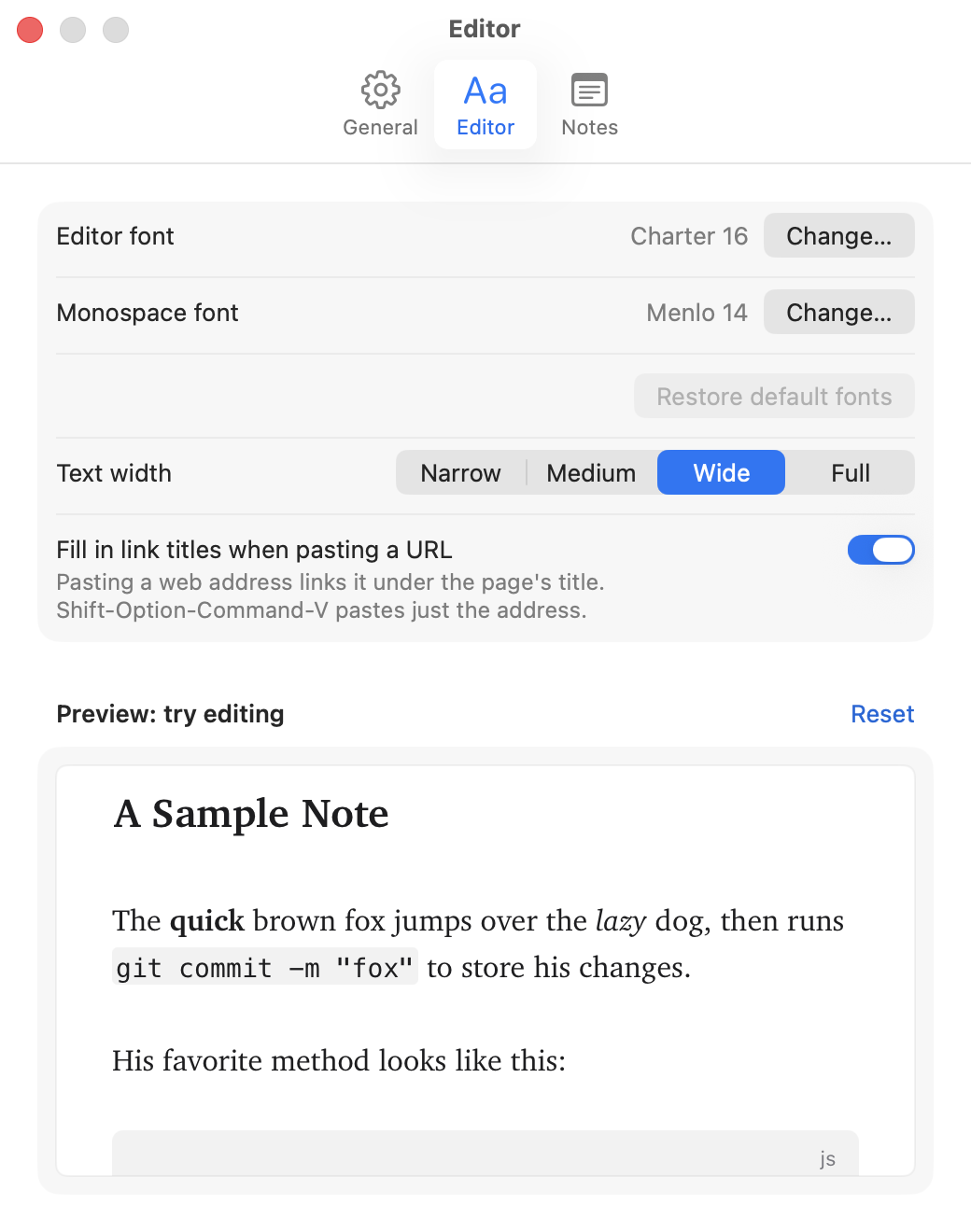
The font for your writing. The default is Charter 16, a comfortable serif. Click Change… to choose a font and size in the standard macOS Fonts panel.
Monospace font
The font for code, tables while you edit them, and other fixed-width text. The default is Menlo 14.
Click Restore default fonts to go back to Charter 16 and Menlo 14.
Text width
How wide lines of text get before they wrap: Narrow, Medium, Wide (the default) or Full. The text sits in the middle of the editor, with the space shared on both sides. The widths follow the font size, so a line holds about the same number of words whatever size you pick; Full uses the whole width of the editor.
Fill in link titles when pasting a URL
On by default. When you paste a web address, Jetfold makes it a link named after the page's title, as Link and Fill Title (⌥⌘K) does. Turn it off to paste addresses as they are. Either way, ⌥⇧⌘V pastes just the address.
The preview
Under the editor settings is a small sample note that shows your fonts and theme in use. It's a real editor, so you can type in it and try out formatting. It's never saved; click Reset to put the sample back.
Notes
Daily note path
Where daily notes are created, as a template with date codes in {braces}. The default is Daily/{YYYY-MM-DD}. Today's path is shown as you type. See Daily Notes for every code.
Under it, Template picks a note for new daily notes to start from; see A template for daily notes.
Templates folder
The folder holding your templates, for File → New Note from Template…. The default is Templates. See Templates.
Inbox folder
Where New Jetfold Note with Selection puts new notes. The default is Inbox. See The Inbox.
Image path
Where dropped and pasted images are saved, as a template. The default is .assets/{original}: a hidden .assets folder at the top of your notes folder, with each image keeping its own name. An example is shown as you type. See Images for the placeholders.
The View menu
The View menu's choices are saved with the workspace too: the column layout and widths, Sort By, focus mode, and whether to show note counts, previews, dates, git status and changed lines, and the sidebar's sections and their order. Jetfold also remembers, for each workspace, which folders are expanded and which notes were open.
About
Jetfold → About Jetfold shows the version.