 Jetfold
Links and Wikilinks
Wikilinks: links between notes
Type a note's name in double square brackets to link to it:
See [[Project Plan]] for the details.
The brackets are hidden, so it reads "See Project Plan for the details", with the name shown as a link. ⌘-click it, or put the cursor in it and press ⌃Return, to open that note.
To get a ready-made link to the note you're in, choose Note → Copy Wiki Link and paste it wherever you like.
Wikilink forms
| You type | It links to | It shows |
|---|---|---|
[[Project Plan]] |
the note named "Project Plan" | Project Plan |
[[Project Plan|the plan]] |
the note named "Project Plan" | the plan |
[[work/Project Plan]] |
Project Plan in the work folder (from the top of your notes folder) |
work/Project Plan |
[[Project Plan#Budget]] |
the "Budget" heading in Project Plan | Project Plan#Budget |
[[#Budget]] |
the "Budget" heading in the same note | #Budget |
The | form lets you show different text from the note's name. It works with headings too: [[Project Plan#Budget|the budget]].
How names are matched
- Names are matched without caring about upper or lower case, and without the
.mdextension. - If several notes share a name, Jetfold prefers the one in the same folder as the note you're writing, then the one closest to the top of your notes folder.
- To point at a specific note, include its folder:
[[archive/Project Plan]].
Embedding a note
Put a ! in front of a wikilink, alone on its line, to show that note right inside this one:
![[Q3 Plan]]
![[Q3 Plan#Budget]]
The note appears in a box headed by its name, fully rendered. With a heading, just that section shows: the heading and everything under it, up to the next heading of the same or a higher level. Click the name to open the note, and put the cursor on the line to edit the link.
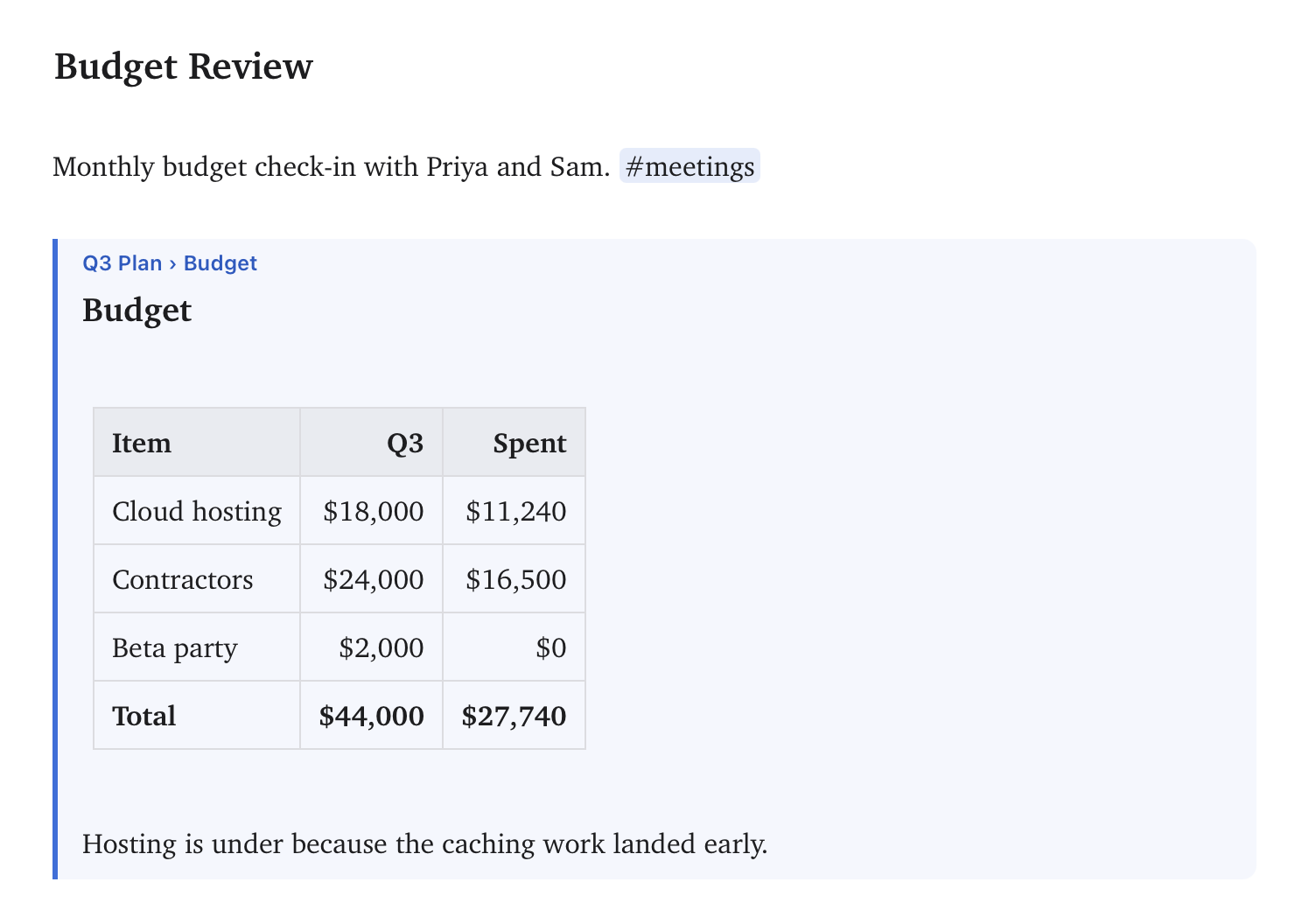
- The embedded text is read when the note is shown, so after editing the embedded note, it updates the next time you open this one.
- An embedded note's own embeds show as links, not boxes within boxes.
- Embeds come along in HTML, PDF and EPUB exports (one level deep); plain text says
[Embedded: Q3 Plan]. - An embed is a wikilink, so it counts as a backlink and follows renames.
Previewing a linked note
Rest the pointer on a link to another note for a moment and the note pops up beside it, fully rendered, so you can check it without leaving the one you're in. A link to a heading ([[Project Plan#Next steps]]) opens the preview at that heading. Scroll inside the preview to read on, select text to copy it, or click the note's name at the top to open it. Moving the pointer away closes the preview.
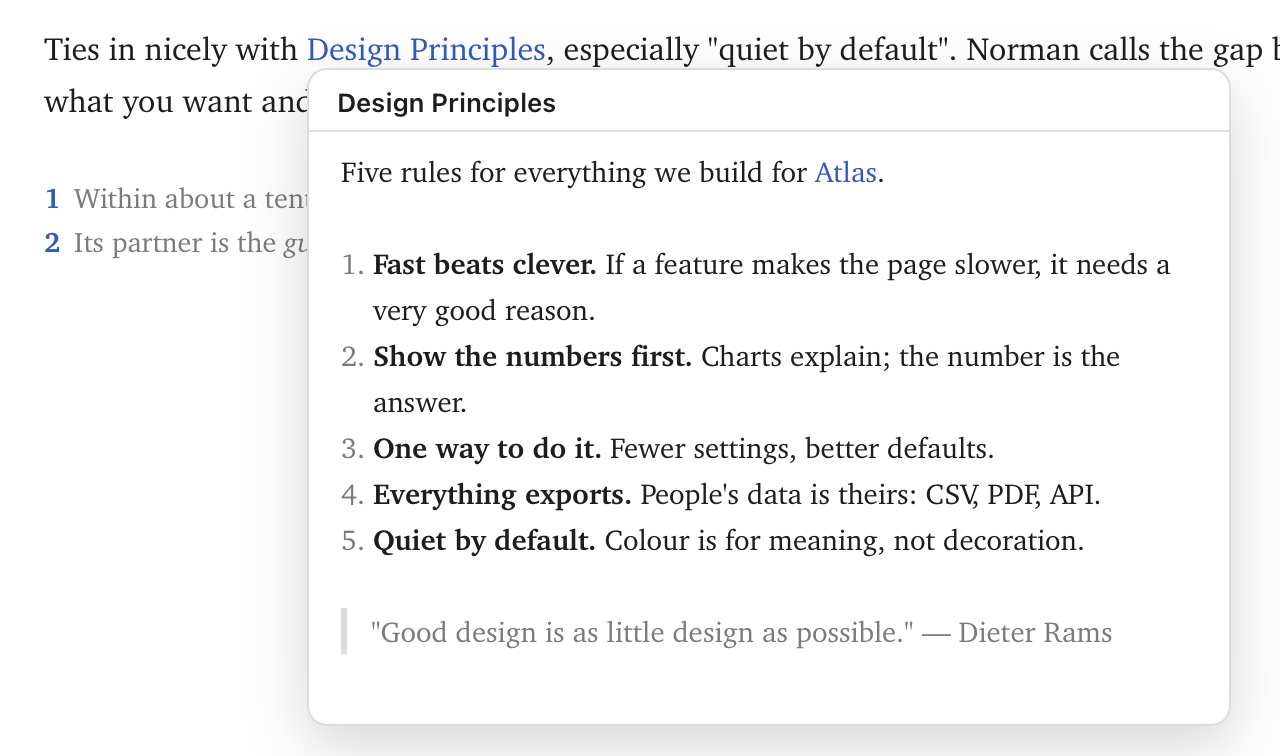
This works for Markdown links to .md and .txt notes too. A wikilink to a note that doesn't exist yet says so, without creating it.
Links to notes that don't exist yet
If you follow a wikilink to a note that doesn't exist, Jetfold creates it (in the folder the link names, or next to the current note) and opens it. That makes it easy to sketch out a set of notes: write the links first, then click through and fill them in.
Autocomplete
Type [[ and a list of notes pops up. Keep typing to narrow it down (the matching is fuzzy, so [[prpl finds "Project Plan"). Notes you edited recently are listed first, so [[ on its own shows your recent notes.
- ↑ / ↓ choose, Return or Tab inserts the link, Escape dismisses the list.
- If nothing matches exactly, the list offers to link to a new note with the name you typed.
- If two notes share the name you pick, Jetfold writes the folder too, so the link points at the right one.
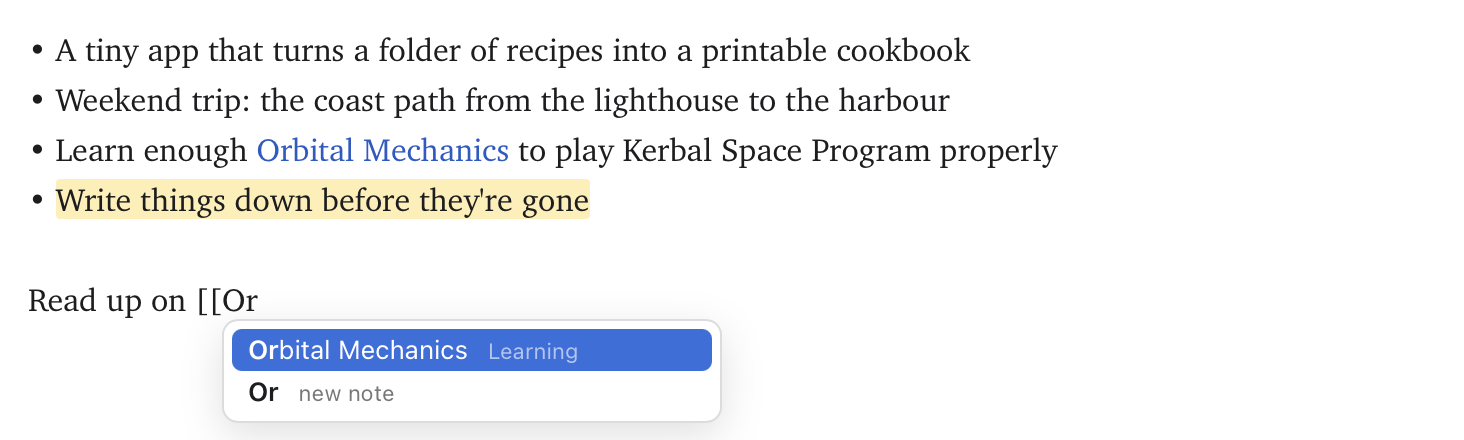
After a note name, type # to choose one of that note's headings: [[Project Plan# lists Project Plan's headings in order. [[# lists the headings of the note you're in.
Links stay up to date
When you rename or move a note or a folder in Jetfold, every wikilink that points to it is updated across all your notes. The text you show (|shown text) and any #heading are kept as they were.
Changes made outside Jetfold (for example, renaming a file in Finder) can't be tracked, so links to it won't be updated.
Removing a link
Put the cursor in a wikilink and press ⌘K. The brackets are removed and the shown text stays.
Extracting part of a note
When a section outgrows its note, select it and choose Note → Extract Selection to New Note (or find it in the command palette). The text moves into a new note in the same folder, and a link to that note takes its place.
- If the selection starts with a heading, the heading names the new note (and isn't repeated inside it). Otherwise the first line does, without its markup.
- If a note with that name already exists, the new one gets a number: "Budget 2".
- Undo (⌘Z) puts the text back; the new note stays, so you can delete it if you didn't want it.
- Want the text to still show here? Put a
!in front of the link to embed the new note.
Backlinks
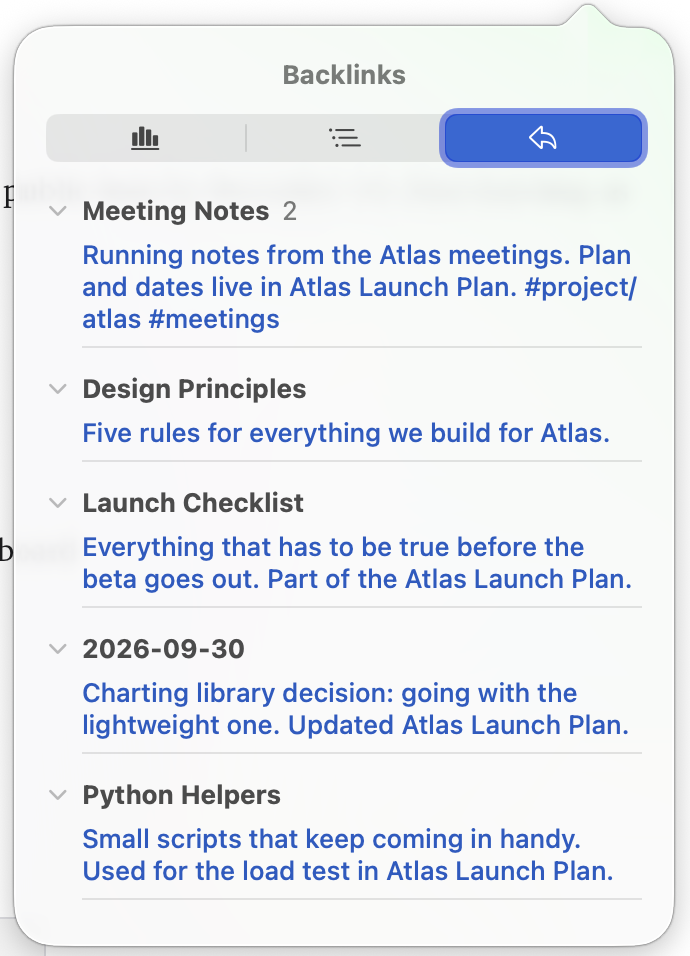
Note Info (ⓘ at the top of the editor, or ⌥⌘O) has a Backlinks tab: every other note that links to the one you're in, newest first, with how many times each links to it and the text around each link. Click a snippet to open that note with the link selected. Click a note's name to collapse or expand its snippets.
Web links
Standard Markdown links work too:
[Jetfold](https://example.com)
<https://example.com>
- ⌘K makes the selected text into a link (or removes the link under the cursor).
- ⌥⌘K (Link and Fill Title) makes a link to the selected URL, or to the URL on the clipboard, and fills in the page's title for you.
- ⌘-click or ⌃Return opens a link in your browser.
Links to Markdown files with a path ([Plan](work/plan.md)) open in Jetfold. A path starting with / is from the top of your notes folder; otherwise it's relative to the current note.
Links from outside Jetfold
Note → Copy Link copies a jetfold:// link to the note. Paste it into a calendar event, a task in another app, or a document, and clicking it opens the note in Jetfold. See Opening Jetfold from Other Apps.