 Jetfold
Formatting
This page lists the Markdown you can write in a note and how Jetfold displays it. Type any of it by hand, or use the Format menu and the slash menu.
Headings
Start a line with one to six # characters and a space:
# Heading 1
## Heading 2
### Heading 3
Emphasis
| You type | You see |
|---|---|
**bold** or __bold__ |
bold |
*italic* or _italic_ |
italic |
***bold italic*** |
bold italic |
~~strikethrough~~ |
|
==highlight== |
highlighted text in your theme color |
`inline code` |
inline code in monospace |
Lists
Start a line with - for a bullet, or 1. for a numbered list. Press Return to continue the list, and Tab or ⇧Tab to change the indent level.
Press ⌥↑ or ⌥↓ to move a list item and its sub-items up or down.
Tasks
Start a line with - [ ] for a task, or - [x] for a completed one. Click the checkbox, or press ⌘., to tick it off.
Tasks from all your notes appear in the Tasks view. To give a task a deadline, add an @date.
Quotes
Start a line with > .
> The best way to have a good idea
> is to have lots of ideas.
Callouts
A callout is a quote that starts with a type in square brackets. Jetfold displays it as a tinted box with an icon:
> [!warning] Mind the gap
> The platform is narrow here.
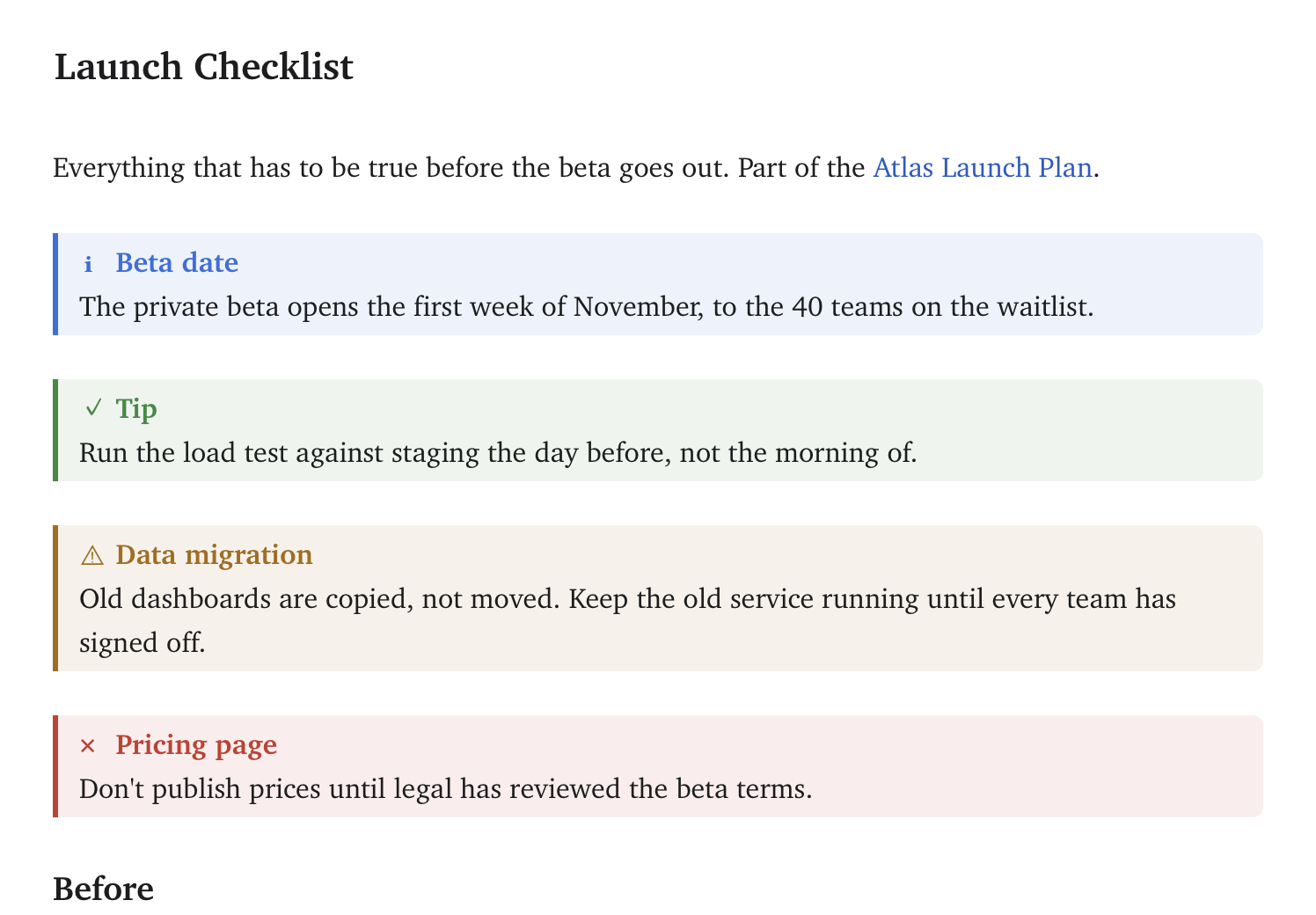
The main types are note, tip, important, warning, and caution. Callouts are plain Markdown, so other apps display them as ordinary quotes.
Horizontal rules
A line containing only --- is displayed as a horizontal divider.
Links
[text](https://example.com) is displayed as a link labeled "text". ⌘-click a link to open it.
- Press ⌘K to turn the selected text into a link.
- Paste a web address to insert a link that uses the page title as its text.
- Paste a URL over selected text to link that text to the URL.
For links between notes, wikilinks are usually more convenient.
Code
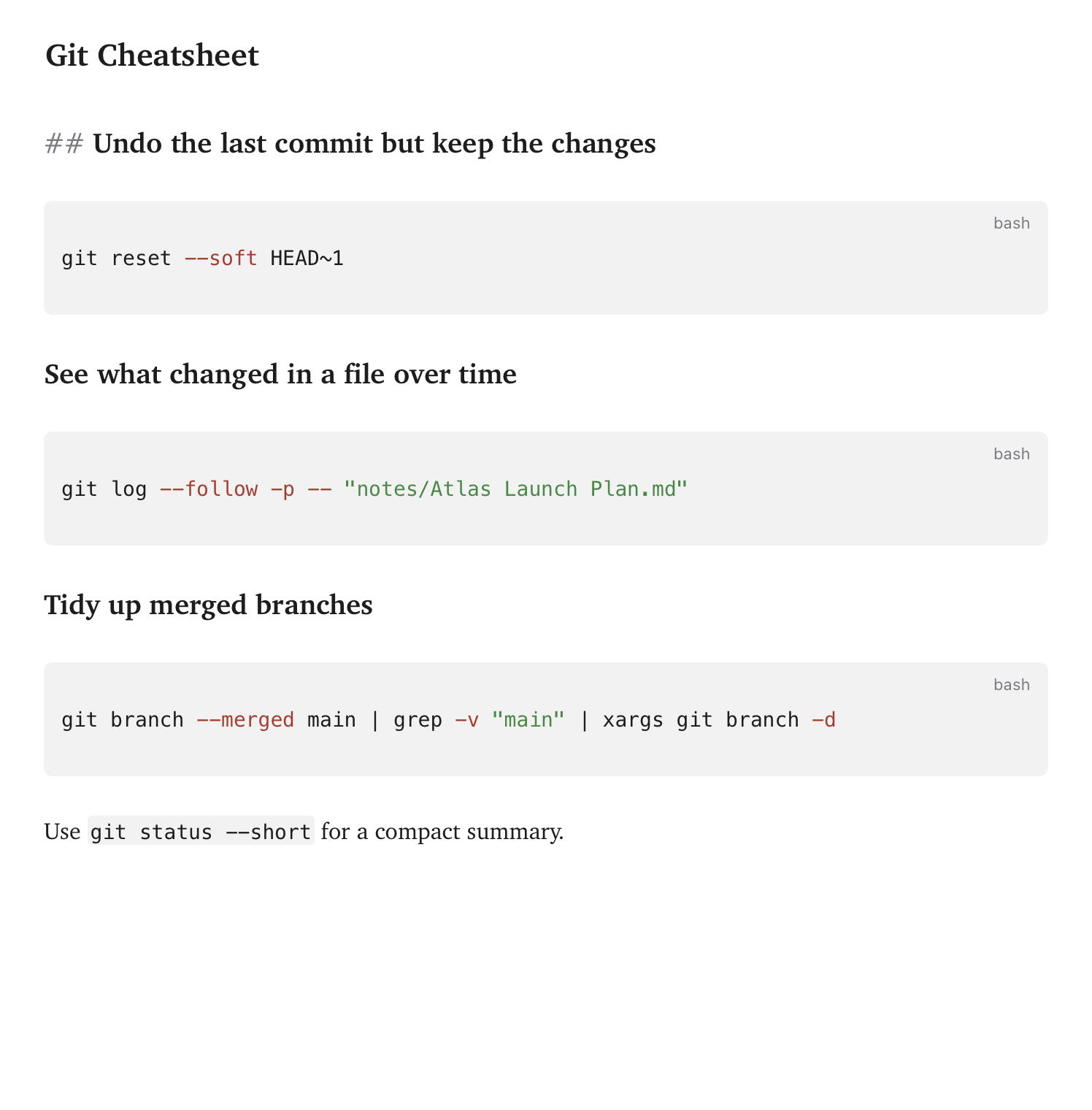
Wrap text in backticks for inline code: `npm install`. For a code block, put code between two lines of three backticks, with a language name for syntax highlighting:
```python
def greet(name):
    return f"Hello, {name}!"
```
Tables
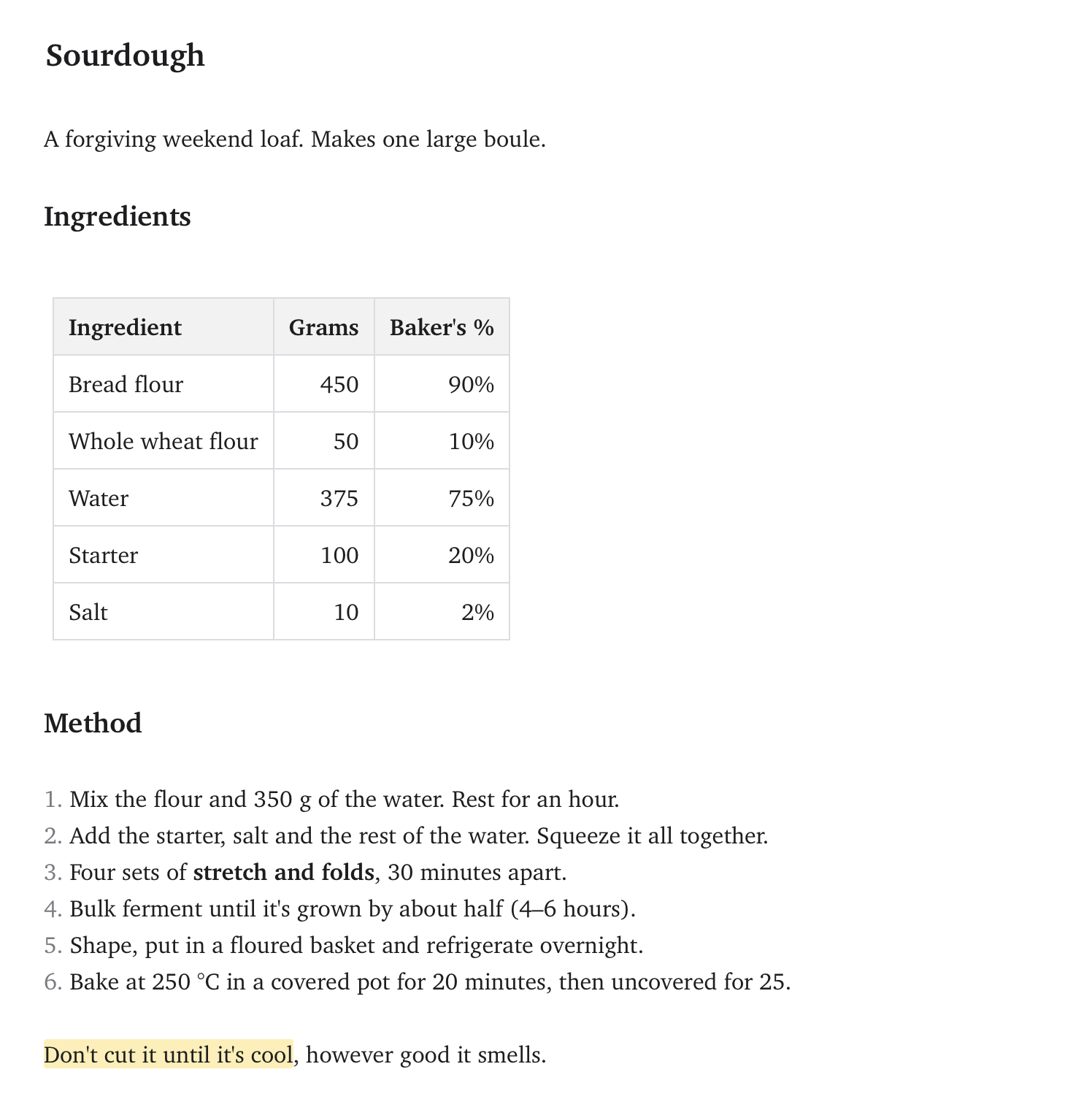
Jetfold renders Markdown tables as a grid you edit in place:
| Fruit  | Color  | Price |
|--------|--------|------:|
| Apple  | Red    | 1.20  |
| Banana | Yellow | 0.50  |
Click a cell to type in it, and press Tab to move to the next cell. Hover over the edge of a row or column to see a grip. Click the grip to sort, align, or delete, or drag it to move the row or column. The file contains an ordinary Markdown table, readable in any editor.
Math
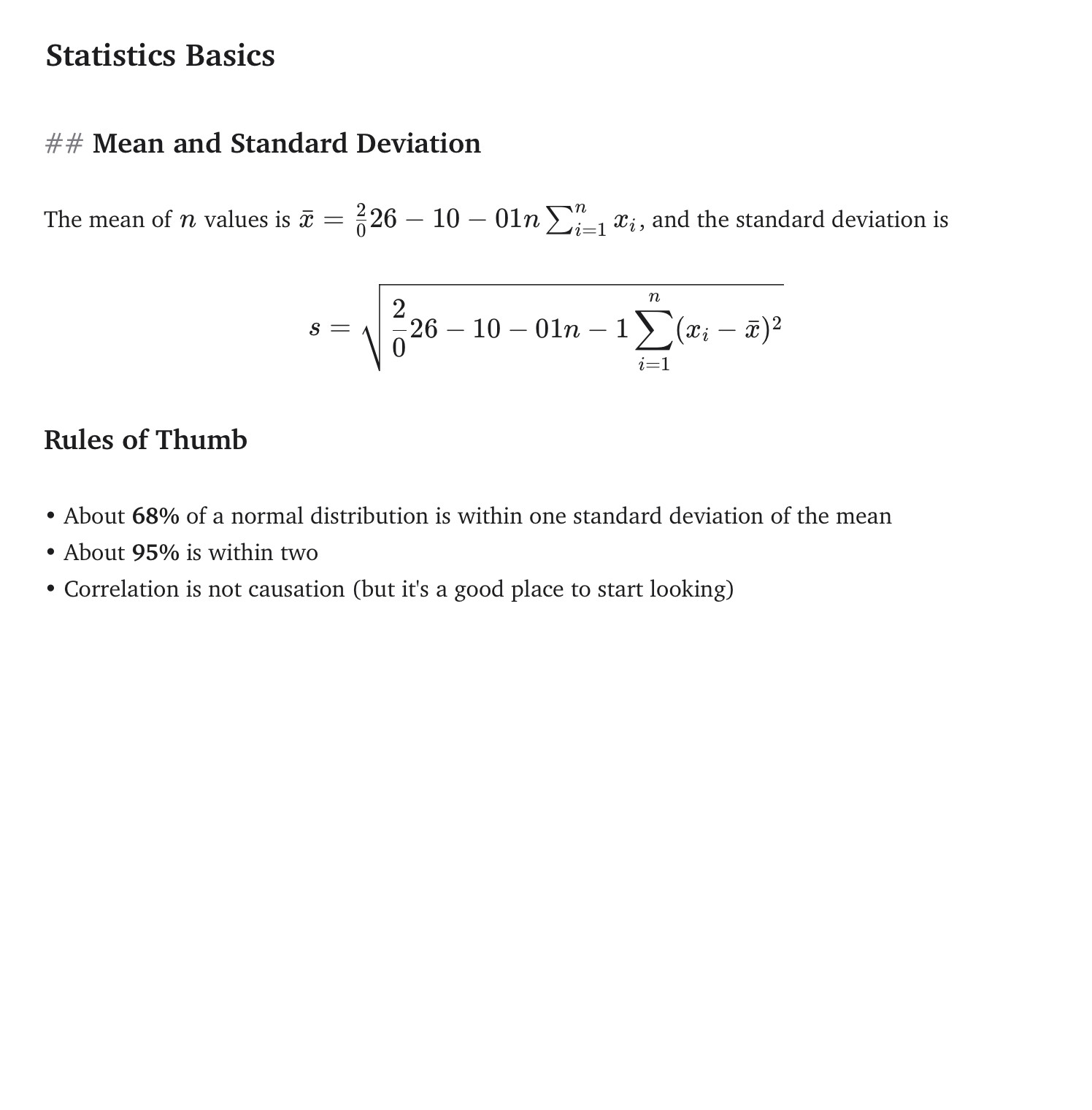
Write LaTeX math between dollar signs: $E = mc^2$ for a formula in the line, or $$ lines for a block:
$$
\int_0^\infty e^{-x^2}\,dx = \frac{\sqrt{\pi}}{2}
$$
Click a formula to edit it. The rendered formula updates as you type. Ordinary dollar amounts like "$5 and $10" remain plain text.
Diagrams
Jetfold draws a code block in the mermaid language as a diagram. Write flowcharts, sequence diagrams, timelines, pie charts, and other diagrams as text.
```mermaid
flowchart LR
  Idea --> Draft --> Review{Good?}
  Review -- yes --> Publish
  Review -- no --> Draft
```
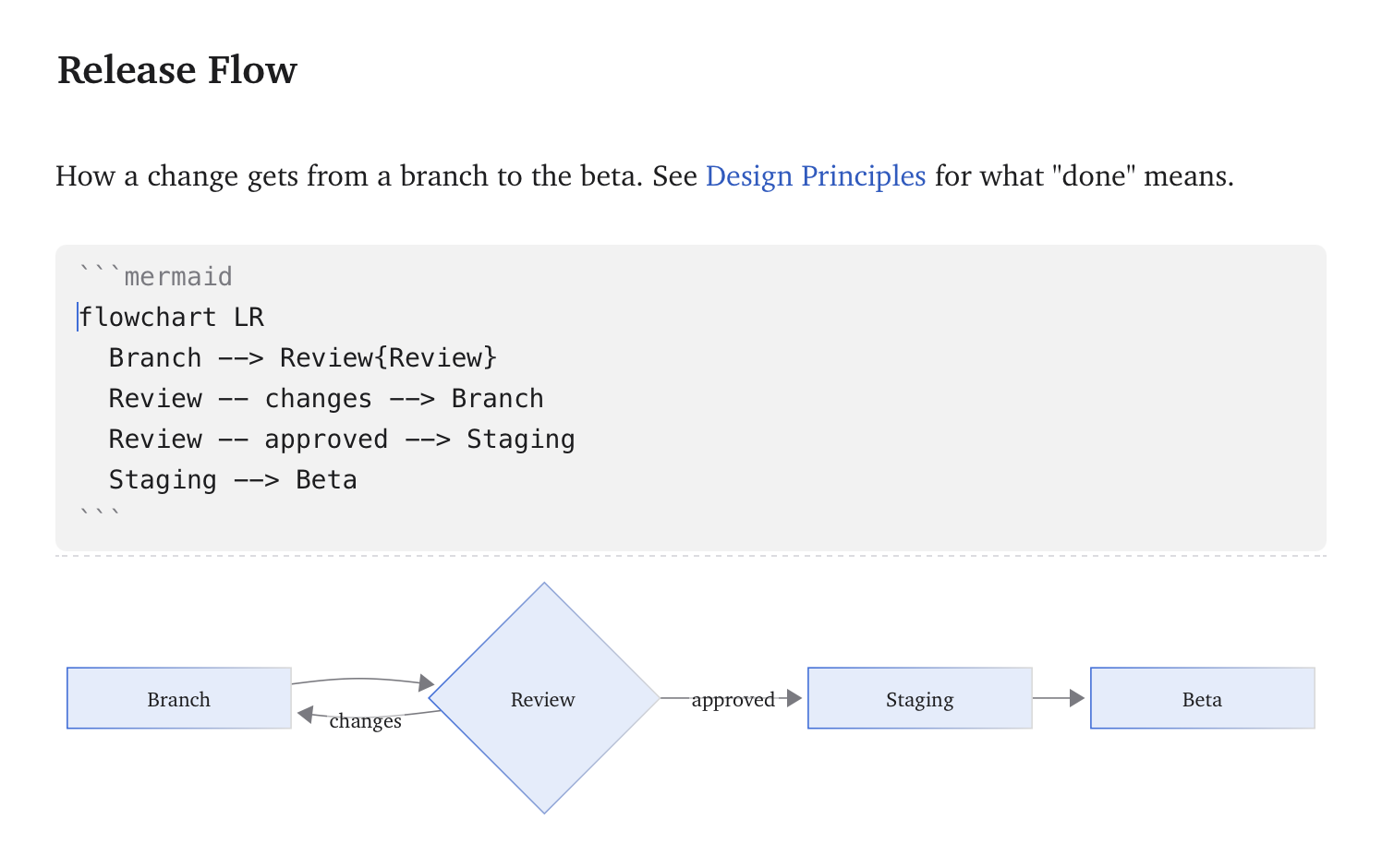
Click a diagram to edit it, and Jetfold redraws it as you type. For all diagram types, see the Mermaid documentation.
Images
Jetfold displays  as an image in the note. To add one, drop or paste it; see Images.
Footnotes
Put [^1] where a footnote belongs, and write the footnote on a line starting with [^1]:, usually at the end of the note. Hover over a footnote number to read it.
Plain text lasts[^1] and reads well everywhere.

[^1]: Text files from the 1970s still open today.
Comments
Text inside <!-- like this --> remains in the file but is hidden in exports. Press ⌘/ to comment out the selection or the current line.
Properties
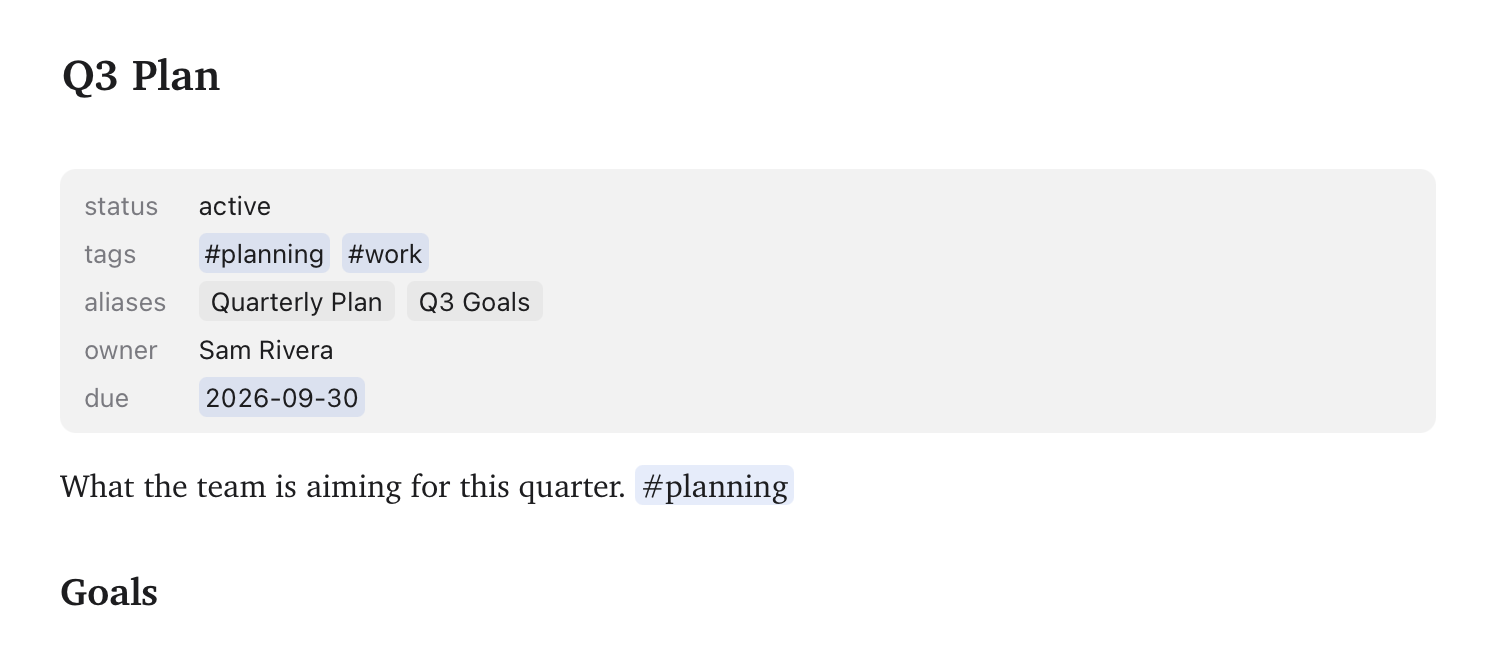
A note can start with properties in YAML between two --- lines, the format many Markdown tools use. Jetfold displays the properties as a panel at the top of the note.
---
status: draft
tags: [work, q3]
due: 2026-10-20
---
A formatting cheat sheet
# Heading 1
## Heading 2
**bold** *italic* ~~strike~~ ==highlight== `code`
- bullet
- nested bullet
1. numbered
- [ ] task @2026-10-10
- [x] done task
> quote
> [!tip] Callout title
> callout text
[link](https://example.com) [[Wikilink]] #tag 
| A | B |
|---|---|
| 1 | 2 |
footnote[^1]
[^1]: the footnote
$inline math$
$$
display math
$$
---