 Jetfold
Views and Tags
Views and tags list notes from all your folders. Use them to see open tasks and upcoming dates, or to find the notes about a project.
Tasks and Agenda
Tasks, at the top of the sidebar, lists the open tasks (- [ ] …) in your notes. Agenda lists lines with a date. Both views group items by when they're due.
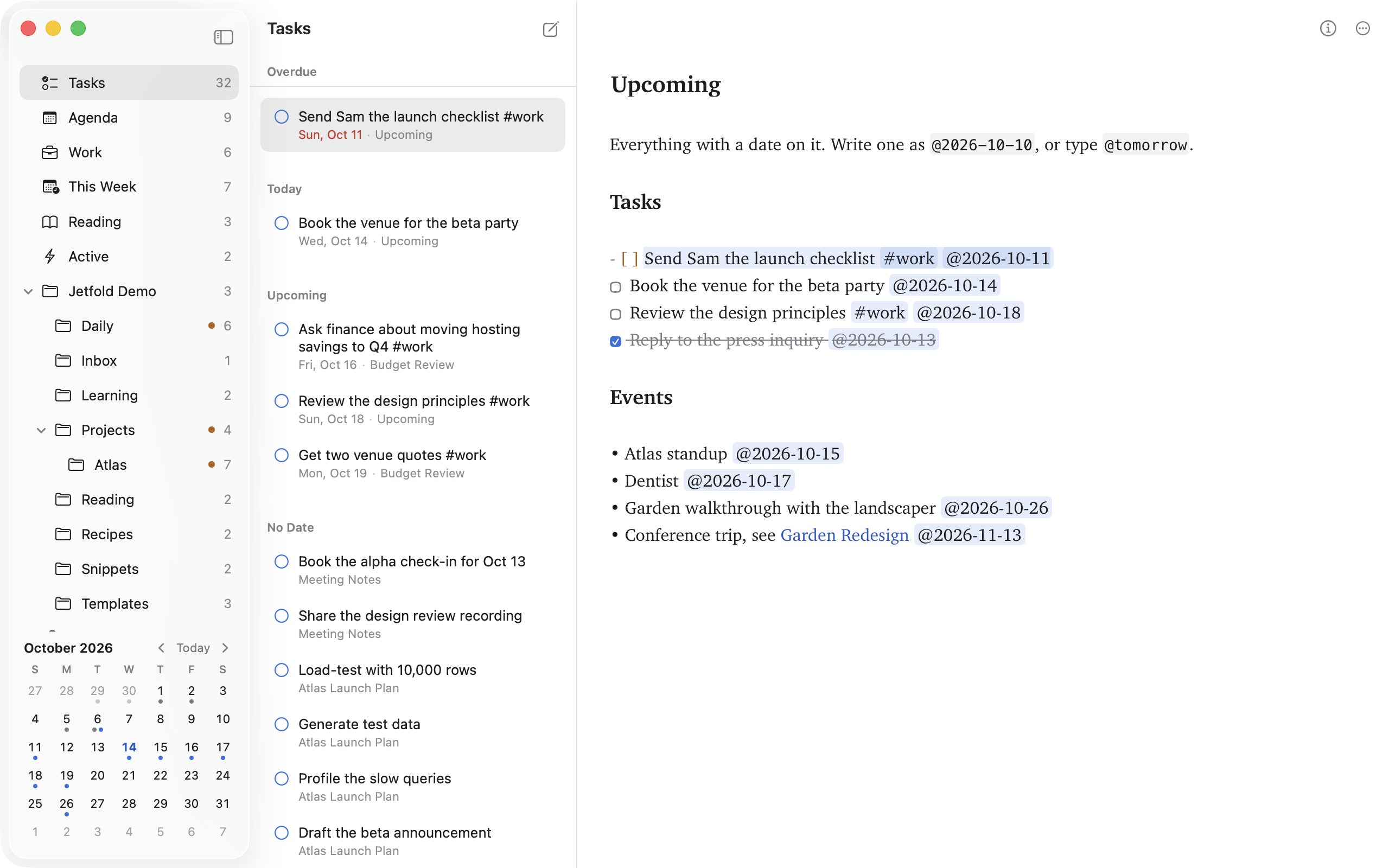
Click a row to open the note at that line. The view remains open, so you can work down the list. To tick off a task, click the circle next to it or press Space.
A date on a task is a deadline. A date anywhere else is an event, which disappears from the view once the day is over. See Dates and the agenda.
Arranging the sidebar
Drag sections of the sidebar to reorder them. To hide a section, turn it off under View → Sidebar, or right-click the section and choose Hide.
Your own views
You can make custom views, such as work tasks, the dates coming up this week, or the notes with status: active in their front matter. Choose View → Sidebar → New View…, choose whether the view lists tasks, agenda dates, or notes, and add filters by tag, folder, title, text, or front matter. As you edit, a preview shows what the view will list.
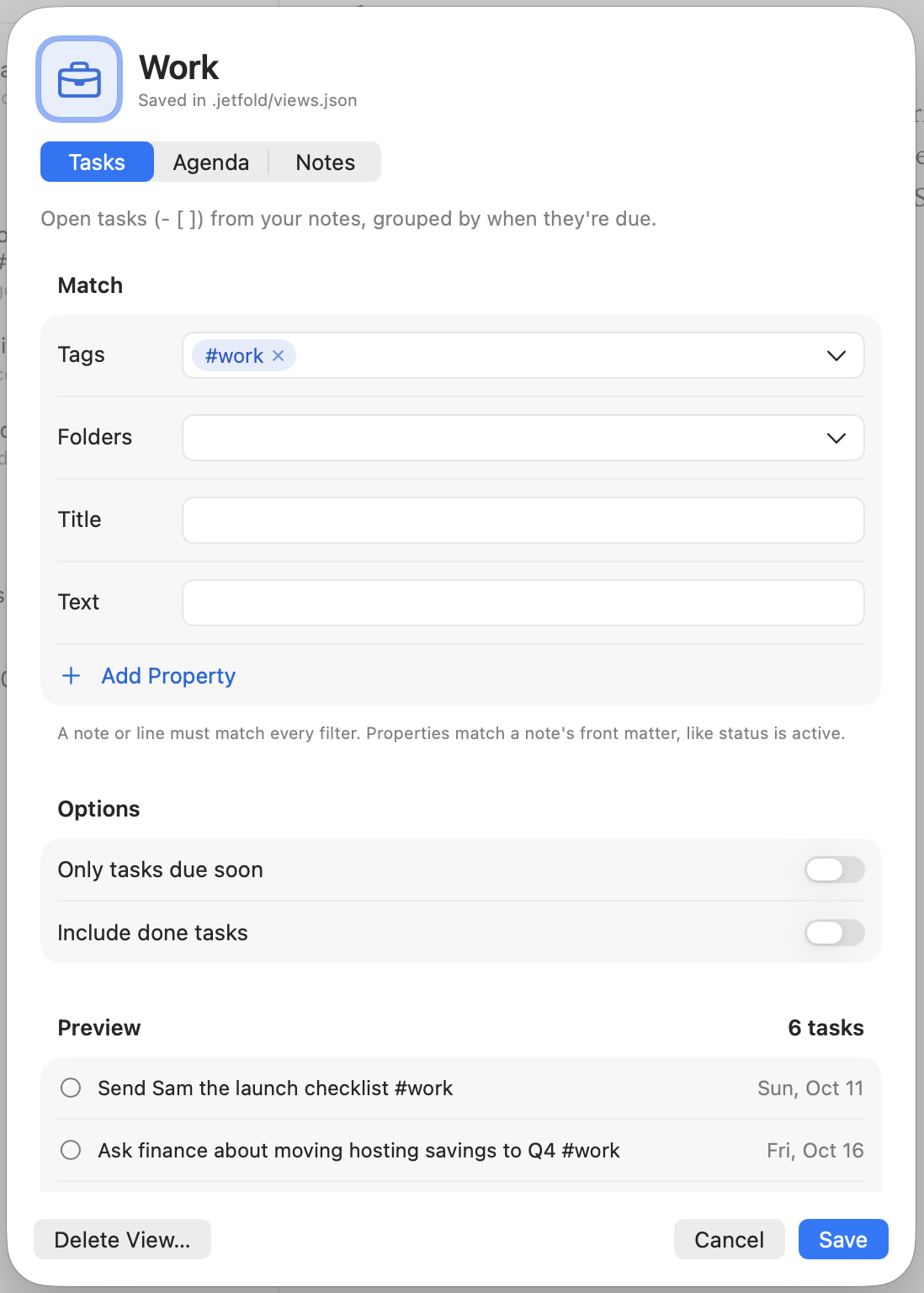
Right-click a view to edit, duplicate, hide, or delete it.
Editing views.json by hand
Views are saved in .jetfold/views.json in your notes folder, so they sync and are tracked in git with your notes. ⌘P → Edit views.json opens the file.
{
  "views": [
    { "name": "Work",      "icon": "briefcase", "show": "tasks",  "tag": "#work" },
    { "name": "This Week", "icon": "calendar",  "show": "agenda", "within": "7 days" },
    { "name": "Reading",   "icon": "book",      "show": "notes",  "tag": ["#book", "#article"], "sort": "created" },
    { "name": "Active",    "icon": "bolt",      "show": "notes",  "folder": "Projects", "property": { "status": "active" } }
  ]
}
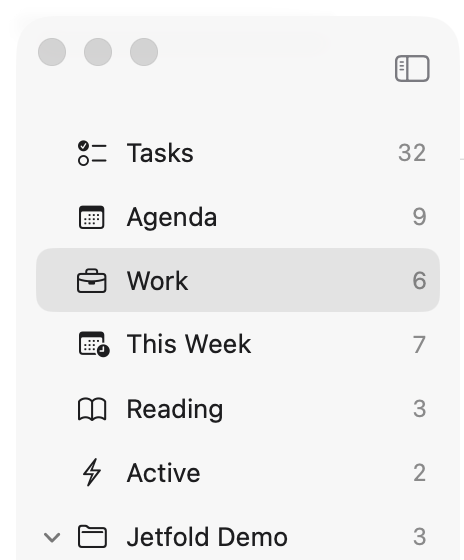
show is tasks, agenda, or notes (the default). icon is the name of any SF Symbol.
Filters limit what a view lists. A note or line has to match all the filters. A filter with a list of values matches any one of the values:
| Filter | Keeps | Example |
|---|---|---|
tag |
Lines or notes with the tag, including nested tags | "tag": "#work" |
folder |
Notes in the folder and subfolders | "folder": ["Projects", "Areas"] |
title |
Notes with the words in their name | "title": "self review" |
text |
Lines or notes with the words | "text": "invoice" |
property |
Notes whose front matter has one of the values | "property": { "status": ["active", "waiting"] } |
within |
Tasks due, or dates, within that time from now | "within": "2 weeks" |
allTags |
Notes or lines that have every tag in tag, instead of just one |
"allTags": true |
done |
Ticked tasks too | "done": true |
sort |
Notes by title, edited, or created |
"sort": "title" |
If Jetfold can't use part of the file, a views.json has problems row appears in the sidebar with details.
Tags in the sidebar
Your #tags are listed in the sidebar, under your folders. Click a tag to list the notes that use it, from all folders.
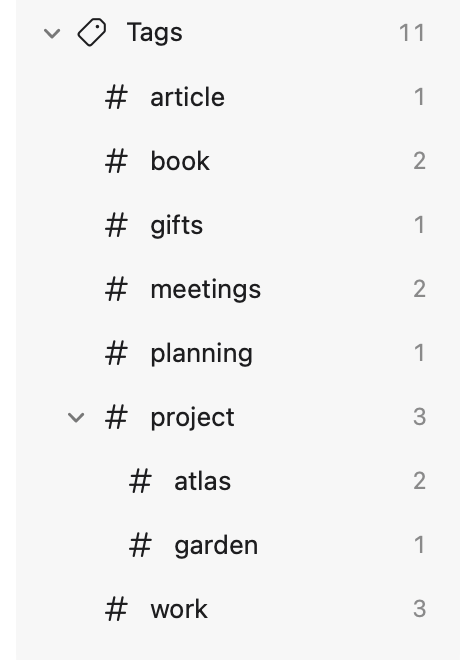
- Drag notes onto a tag to tag them.
- ⌘N with a tag selected creates a note with that tag.
- Right-click a tag to rename it in every note, or remove it from all notes.